How-To
Repurposing an 'Obsolete' Windows 10 Laptop into a Thin Client, Part 1
In a recent article, I discussed the criteria you should use and the choices you have when deciding which thin client to use to connect users to a virtual desktop infrastructure (VDI), such as Horizon or Citrix, desktop-as-a-service (DaaS) offerings such as Azure Virtual Desktop (AVD), or even SaaS applications like MS Office 365.
A Plethora of 'Obsolete' PCs
In mid-October of 2025, Windows 10 reached its end-of-service (EOS), and hundreds of millions of devices are no longer supported. Statcounter.com shows that in October 2025, 42% of desktop systems still run Windows 10! That means millions of PCs are no longer supported.
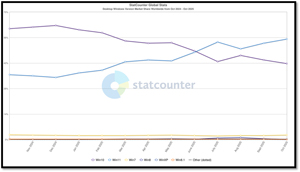 [Click on image for larger view.]
Some companies will choose to continue operating Windows 10 systems despite Microsoft's announcement that support has ended. These organizations will not receive further security or software updates, leaving their systems, and more importantly, their entire companies, exposed to security vulnerabilities.
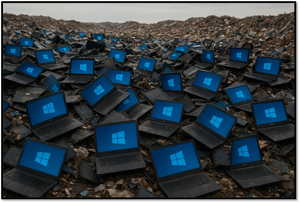
Other companies will discard these devices and purchase new Windows 11 devices, incurring significant hardware and software costs and filling our landfills with the discarded devices.
 [Click on image for larger view.]
Some forward-thinking organizations choose to update their user environments by implementing VDI, DaaS desktops, or even eliminating desktops in favor of web applications.
These companies will still need to provide their users with a mechanism to access their desktops or web-based applications. Some will choose to purchase a new thin-client, while others will look at replacing Windows 10 on these so-called "obsolete" machines with a thin-client OS. By adopting this approach, they can extend the usability of their current hardware while preserving the investment that they made in it.
Repurposing Obsolete PC's
Last year, I wrote an article about running 10ZiG RepurpOS on the cheapest Windows PC I could find, a $100 ATOPNUC MA90. That PC had a two-core AMD A9 9400 CPU, 8 GB RAM, and 128 GB SSD. I discovered that that cheap PC could barely run Windows, but it was perfectly capable of running RepurpOS.
RepurpOS is 10ZiG's thin-client OS designed to replace the OS on x86 PCs, Laptops, and even other manufacturers' thin clients.
In this article, I will discuss repurposing an old Windows 10 laptop that couldn't be updated to Windows 11 as a thin client using RepurpOS. Before digging into the meat of this article, I need to note that 10ZiG offers four related Operating System options: three are for their own Thin & Zero Clients, and the one I will be looking at in this article (RepurpOS) is designed to replace the OS on x86 laptops, PCs, and even other makers' thin client hardware.
 [Click on image for larger view.]
All four of these OSes can be centrally managed via the 10ZiG Management Console (10ZiG Manager), a license-free, no-subscription management platform.
RepurpOS Requirements
The hardware requirements for RepurpOS are relatively minimal. To run it, your device only needs to have an Intel or AMD x86 CPU, 2 GB of RAM, and 4 GB of persistent storage.
I will be installing it on a Dell E7440 laptop, which is now over a decade old. It has an Intel Core i5-4310U CPU with two cores and 16GB of RAM. I thought this would be a good use case due to the laptop's popularity in the business community. Used ones can be found on eBay for around $70, and refurbished ones for under $200.
Licensing
RepurpOS is a subscription service available for 1 to 5 years with support in the US, UK, and EMEA. You can download and try it without licensing it, but updates are disabled, and a pop-up will appear until registration and licensing are complete.
A quick Google search showed that the cost of a RepurpOS subscription is extremely attractive, about half the price Microsoft charges for Windows 10 Extended Security Updates (ESU).
I will be using an unlicensed version for this article.
Installing RepurpOS
RepurpOS can be downloaded for free from 10ZiG's website, but it requires you to fill out a form that only needs minimal information.
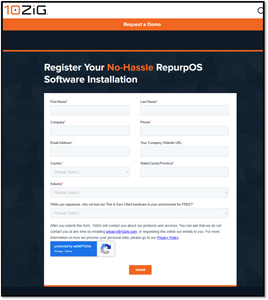 [Click on image for larger view.]
However, I was able to pick up a USB drive with it from the 10ZiG booth at EUC World, which I attended early this year. This is what I will be installing and using for this article.
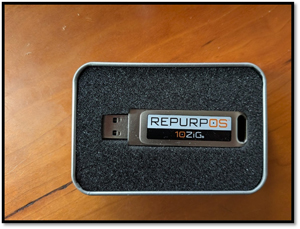 [Click on image for larger view.]
I booted the laptop from the USB drive and was greeted with an installation screen and an EULA, which I accepted. A few seconds later, I was presented with its dashboard and this pop-up.
[Click on image for larger view.]
At this point, I was running it off the USB drive and had not actually installed it or overwritten the laptop's existing OS.
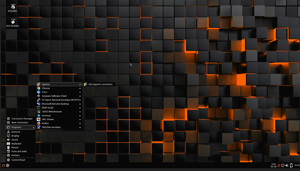
I found the OS dashboard attractive and intuitive to navigate.
 [Click on image for larger view.]
I configured my Wi-Fi network and found that it supports connecting to all the popular remote desktops, such as Citrix and Horizon (Omnissa), AWS, and AVD, as well as less common ones, such as Apporto. This is only a partial list of the clients that they support. You can visit 10ZiG's website to view the complete list of remote desktops they support.
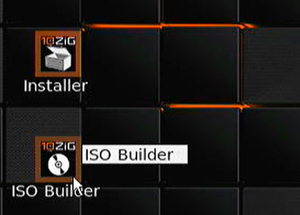
After I was satisfied with its performance running off the USB drive, I clicked the 10Zig Installer icon to install the OS on the laptop's drive.
 [Click on image for larger view.]
There is also an ISO Builder that allows administrators to create a custom ISO image of RepurpOS. This enables administrators to create a deployable ISO image containing any customizations they have made to that machine. This can be used to create a USB drive for deployment to other devices. This is very useful, as it streamlines the installation process.
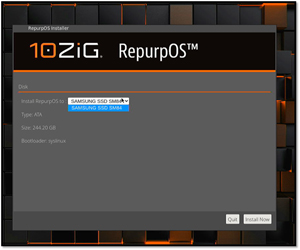
As I didn't need a custom image, I clicked the Installer icon. I told it where to install the OS (the laptops' Samsung SSD) and clicked Install Now.
 [Click on image for larger view.]
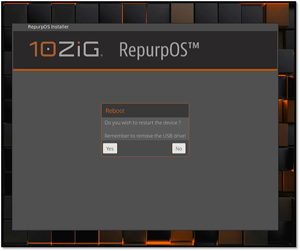
After it formatted and copied files to the drive, which took less than a minute, I removed the USB drive and restarted the laptop.
 [Click on image for larger view.]
Accessing a Local Desktop Using RDP
The first test I conducted used Remote Desktop Protocol (RDP) to connect to a Windows 11 virtual machine running in my home lab.
Many people have misconceptions about RDP, but it has evolved significantly from its early days as a basic remote-access tool into a fast, secure, and optimized protocol that can deliver a remote desktop over a network. Modern RDP implementations benefit from advanced codecs, more innovative bandwidth management, and GPU-accelerated rendering, all of which make remote sessions smoother and more responsive. It can even do so over less-than-optimal network conditions. Features like Adaptive Graphics, H.264/H.265-based rendering, intelligent frame prediction, and dynamic input optimization help ensure users experience minimal lag and sharp visuals when working with office applications and even multimedia content.
RDP has a bad reputation due to security issues, but it has made significant strides in security. Earlier versions of the protocol had vulnerabilities, but current versions leverage Network Level Authentication (NLA), TLS encryption, and hardened session-handling to protect both clients and servers. Integration with modern identity solutions, including Azure Active Directory, Conditional Access, and multifactor authentication, further enhances security for organizations that require remote access at scale. With these improvements, RDP is no longer seen as a legacy protocol but as a thoroughly modern and enterprise-grade option for secure remote work.
Today, RDP can, and is, used across a wide variety of desktops and deployment models. Of course, it works seamlessly with Windows 10 and Windows 11 desktops, but it also works with Windows Server-based virtual desktops, Azure Virtual Desktop, and Windows 365 Cloud PCs. This makes RDP incredibly flexible for organizations deploying VDI, DaaS, hybrid cloud environments, or traditional on-prem remote desktops. As a result, RDP remains one of the most universally compatible protocols for delivering remote user experiences.
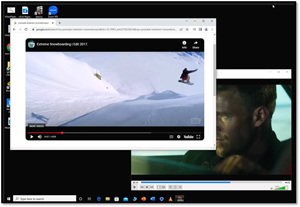
After logging in to the desktop, I launched a few applications, performed a few everyday tasks, and played a locally stored video using VCL while streaming a YouTube video in the foreground.
 [Click on image for larger view.]
The videos displayed without issue, and my RDP user experience was exceptional.
I believe that RDP has been unfairly criticized over the years, but its latest version makes it competitive with other modern display protocols, and its widespread use makes it essential for RepurpOS to support it, which it does.
Initial thoughts on 10ZiG RepurpOS
In this article, I explored the growing importance of repurposing aging Windows 10 hardware now that the OS has reached end-of-service as of October 2025. With roughly 42% of desktops still running Windows 10 at EOS, organizations face a difficult choice: continue running unsupported systems, replace them with new Windows 11 hardware, or modernize with VDI, DaaS, or browser-based workflows. I focused on the third option, extending the life of so-called “obsolete” PCs by installing a thin-client operating system, 10ZiG's RepurpOS. This approach allows companies to preserve their hardware investments while giving users secure, centrally managed access to virtual desktops and SaaS applications.
To demonstrate this, I walked through my experience repurposing a decade-old Dell Latitude E7440 using RepurpOS, a lightweight thin-client OS with minimal hardware requirements and centralized management via the 10ZiG Manager. I covered installation, customization options, licensing, and performance testing, including a deep dive into modern RDP, which I found to be secure, efficient, and surprisingly responsive. My hands-on tests showed that even inexpensive or outdated systems can deliver excellent remote desktop performance when paired with a capable thin-client OS, making repurposing a practical and cost-effective strategy in the post-Windows 10 era.
In part 2, I will see how well it handles VDI workflows. To do this, I will connect to a Horizon VDI desktop, run multiple Microsoft Office applications, and stream high-quality YouTube videos. I will also test unified communications using Zoom VDI with Multimedia Redirection, which offloads processing to the thin client to improve performance. Since most users will rely on SaaS apps, I will explore running Office 365 and other web apps locally, on the laptop, in the browser. I will also verify its support for dual monitors.
About the Author
Tom Fenton has a wealth of hands-on IT experience gained over the past 30 years in a variety of technologies, with the past 20 years focusing on virtualization and storage. He previously worked as a Technical Marketing Manager for ControlUp. He also previously worked at VMware in Staff and Senior level positions. He has also worked as a Senior Validation Engineer with The Taneja Group, where he headed the Validation Service Lab and was instrumental in starting up its vSphere Virtual Volumes practice. He's on X @vDoppler.