In-Depth
Migrate to Global Secure Access
When we last looked at Microsoft's Secure Services Edge (SSE) solution -- Global Secure Access (GSA) -- back in February 2025, it had only been in the market for six months. Now, 18 months later, we have the next milestone that many products have -- "here's our tool to help you migrate to our platform from the competition."
There's also been some interesting development in GSA over this time, especially for managing AI usage in your organization that we'll also look at. Let's dive in.
It's Been a Long Road Getting From There to Here
Apologies for the oblique Star Trek reference but it's often a milestone in a product's life cycle where enterprises are considering a migration to your product from the incumbent competitor that they have in place and they ask -- "is there a way to simplify this process?"
Several program managers inside Microsoft heard this request and they got together and made Migrate2GSA, a free, open-source project to help move to GSA. Note that this isn't an officially supported project from Microsoft.
If an organization has been using Zscaler, Netskope or Cisco Umbrella for a long time there will be a lot of rules and configurations that have been fine tuned over years and moving this complicated system to a different platform isn't straightforward. The creators followed three principles:
- Never modify existing objects -- all policies etc. that the tool creates get a Migrate2GSA suffix name, and all other objects are untouched. On subsequent runs, previously created objects may be updated.
- Never enable Conditional Access Policies (CAPs) -- GSA is tightly integrated with the CA platform and that's where all the access rules are set. Migrate2GSA creates policies in a disabled state, and an administrator must manually move them first to report only where the action that would have been taken for a connection is recorded in the sign-in logs but not actually enforced. Also known as the "I don't want to lose my job" option, it allows administrators to check that a CAP is actually working as you expected. An administrator can then also manually set CAPs to the enabled state to enforce them.
- Administrators must review the CSV files before changing the state of each rule to Provision = yes to ensure that no enforcement happens outside of admin control.
The migration workflow has four phases:
- Export -- discover the source configuration either through an API connection, or an alternative way (see below) and export it to JSON or CSV files.
- Convert the source files to the GSA model, check for conflicts and match web categories with a mapping file (one platform might call it Pornography, another Porn for example), the output is a CSV file.
- Review -- administrators peruse those CSV files and validate the configuration of each rule.
- Provision -- the validated CSV files are used to create GSA rules and objects.
There's no AI involved in the process (but there was in the creation of it, see below) and it's all happening locally on your device, no data is uploaded to Microsoft. The first two steps are custom to the source platform, but the last two steps are identical no matter which system you're migrating from. All phases produce verbose logs so you can troubleshoot any issues along the way, and the console output is color coded so you can easily spot errors. Idempotency is preserved so you can safely re-run the process multiple times.
 [Click on image for larger view.] Importing the PowerShell Module and Starting a Conversion from Zscaler to GSA
Supported platforms for migration to Entra Internet Access (EIA) are:
And for Entra Private Access (EPA):
Some source systems are "easy" and provide an API that the export tool can connect to, but others don't -- for example, Cisco Umbrella and Defender for Endpoint require you to browse the web portal and use the browser dev tools to export an HTTP Archive (HAR) file from your browser. Forcepoint supports manually exporting to a CSV file that can be used as a source.
 [Click on image for larger view.] Exporting Zscaler Private Access Configuration
The output of phase 2 for EIA is two files, one CSV for policies, and one CSV for security profiles, whereas for EPA it is a single CSV file. They contain all four layers, rules, policies, security profiles and CAPs. Where required you need to make sure to enter the right Entra group (or usernames) during the review, so the rules are matched to the correct target cohort.
 [Click on image for larger view.] Example CSV File Output for Review
Note that you'll get warnings where features aren't supported, for example, Zscaler can block access based on an IP address, which GSA doesn't support, other platforms may support a "warn" option, rather than just block or allow. In GSA this will be treated as an allow rule, so make sure that's what you are expecting. Once all the files have been reviewed and edited, you can move to the provision phase where you can take incremental steps to ensure that everything is working as expected. There's a -WhatIf option to see a preview of what'll happen, you can use -PolicyName to just test a single policy or do all of them but skip the generation of the CA policies themselves. For private access the output isn't CAPs, it's Enterprise Apps that are published to users for access.
You could also use Migrate2GSA for deploying GSA greenfield, by creating the CSV files manually, and then deploying the configuration, which could be handy if you're an MSP and wanted the same settings across multiple tenants for example. There's also export functions so you can back up all EIA / EPA configurations for auditing, copying configurations from tenant to tenant and the all-important "backup before you make changes."
It probably goes without saying, but these configuration files and any exported artefacts contain sensitive information that might be useful for an attacker if found, so protect them accordingly.
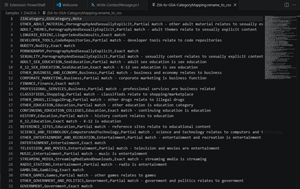 [Click on image for larger view.] Zscaler Internet Access to GSA Mapping File Example
An interesting twist is that the whole project is vibe coded -- not a single line of PowerShell code was written by hand. On the other hand, the creators said they had to spend a lot of time on getting the specs laid out correctly so that the code would work as expected. The whole project is now over 27,000 lines of code, all written by AI.
The authors also wrote this without access to the source systems, to ensure no conflict between Microsoft and these other vendors.
Global Secure Access Is Maturing
The headline new feature here is the inclusion of the AI gateway in the Secure Web Gateway. As Internet Access in GSA has matured it's gotten better at defining categories of websites that you want to block for your users, and more granular targeting for specific sites you need to block. But the extension into Shadow AI discovery, AI agent discovery (preview) and Generative AI Insights (preview) are great additions to defender's tool belts.
Shadow AI discovery uses the SaaS / AI apps catalog in Defender for Cloud Apps (MDA), which is currently over 37,000 apps, to provide a risk score for each identified AI app being used in your environment. If you have MDA deployed, you can also unsanction AI apps (which will stop them working) that you don't want users to use. Remember, GSA sees network traffic (and breaks TLS so it can see inside encrypted traffic), so not only web-based AI apps will be detected, but any AI app on endpoints will be discovered. While this gives you the high-level understanding of the AI usage across your organization, Generative AI Insights on the other hand sees the actual prompts sent to supported AI applications, as well as Model Context Protocol (MCP) traffic between AI agents and servers. Currently these Generative AI apps are supported:
- Microsoft 365 Copilot
- Copilot (public)
- ChatGPT
- Claude
- Grok
- Mistral
- Cohere
- Pi
- Qwen
- Meta AI
- Gemini
Finally, AI agent discovery, also in preview, discovers agents on the network / running on endpoints and classifies them based on whether they have an Entra Agent ID assigned (managed) or not (unmanaged). You can also forward traffic from agents created in Copilot Studio and apply web content / threat intelligence / network file filtering to protect them.
Another GSA improvement is Intelligent Local Access (ILA) which optimizes the traffic flow from a client to EPA apps to avoid hairpinning, so if a device is on the same network as an app, the traffic goes direct, while the access policies still apply.
You can now let guest users bring their own devices and be able to access your EPA apps, with a useful account switching option.
 [Click on image for larger view.] External User GSA Access (source: Microsoft).
iOS and iPadOS are now supported platforms, relying on the Defender for Endpoint agent for GSA policy enforcement.
The fundamental benefit of GSA for me is that extends an identity aware fabric, using the engine of Conditional Access Policies from just targeting applications to network traffic profiles, this closes the visibility gap and makes sure that organizations can apply the policies they want, where they want, to the devices, users and networks they need to protect. In my mind, GSA has grown up to be a true Zscaler/Netskope competitor, not just an "Entra-powered VPN replacement."
About the Author
Paul Schnackenburg has been working in IT for nearly 30 years and has been teaching for over 20 years. He runs Expert IT Solutions, an IT consultancy in Australia. Paul focuses on cloud technologies such as Azure and Microsoft 365 and how to secure IT, whether in the cloud or on-premises. He's a frequent speaker at conferences and writes for several sites, including virtualizationreview.com. Find him at @paulschnack on Twitter or on his blog at TellITasITis.com.au.