Vanover's Virtual Space
ESXi and The Command Line
ESXi isn't the end of the line for our beloved command line.
- By Rick Vanover
- 05/01/2009
At a training class I attended, among the first comments from the instructor was that everything a virtualization administrator would ever want to do can be done through the VI Client. I quickly piped up and told the instructor that this was incorrect, as frequently we need the command line for many tasks. With VMware ESXi, we have obstacles in going about some of these tasks. Let me share with you how to get into some of the internal elements of ESXi that are not so obvious.
The main reason I went about this task is to be able to manage virtualized storage properly. For most storage systems, it's not really necessary to have command line access to the storage system, as ESX through the VI Client displays the most pertinent information regarding storage in the interface. In the case of virtualized storage, it is not as obvious to distinguish one piece of storage from another.
I have become quite versed with the esxcfg-mpath command for this very reason.
In ESXi, this was made difficult by no default command line interface (CLI). There is a CLI for ESXi, and the examples below show how to crack it open and get the information you need. Above all, these configuration changes to ESXi are officially technical support tools and go into an unsupported configuration -- so, the obligatory "use at your own risk" statement applies. To get into the console on ESXi, take these steps:
- Press ALT+F1
- Enter the text: unsupported (press Enter)
- Then type the root password for the ESXi installation (note the text will not be displayed)
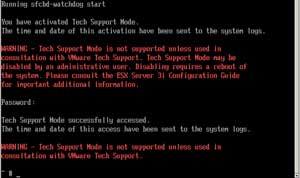
If you enter the console correctly, you'll see what's in Fig. 1.
[Click image to view larger version.] |
| Figure 1. ESXi shown going into Tech Support Mode. Use with caution. |
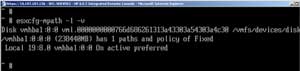
Once in the console, we can do our base commands, such as the esxcfg-mpath command to retrieve disk information. The main piece of information I frequently use esxcfg-mpath for is to get the serial number of a logical unit number (LUN). This is relevant more so in virtualized storage environments, and to a lesser extent, direct attached storage configurations.
[Click image to view larger version.] |
| Figure 2. The multi path storage management command is being run on the ESXi console. |
If you are in the limited console function of ESXi and need to return to the grey and yellow screen where it normally resides, simply press Alt+F2. This does not log out the root session on the console; however typing "exit" will do so.
The next question that comes up is, how do I use SSH to run these commands so I don't have to use a console? This is possible by modifying the /etc/inetd.conf file on the host. Open the file in a vi editor and find the #ssh line. Remove the hash symbol and restart the server. At that point, SSH connections will be permitted.
These are not configurations delivered with the product, so I emphasize that these should used on an as-needed basis. Yet I'm still convinced ESXi is the way to go. There is a learning curve, but it is not something we can't undertake. Let me know if this helps or if there is more you want to see on ESXi.
About the Author
Rick Vanover (Cisco Champion, Microsoft MVP, VMware vExpert) is based in Columbus, Ohio. Vanover's experience includes systems administration and IT management, with virtualization, cloud and storage technologies being the central theme of his career recently. Follow him on Twitter @RickVanover.