How-To
Running AI Locally: Why VMware Shops Should Care
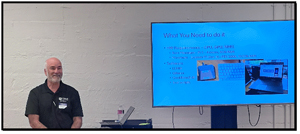
Recently, I had the opportunity to give a presentation to my local VMware Users Group (VMUG) about running AI locally. The presentation was well received, so I thought I would write an article that follows the same track: a summary of local AI, how to decide what LLMs you can run on your hardware, and how to benchmark local AI.
 [Click on image for larger view.]
Local AI vs. Private AI
Before delving into the article, I want to address something an astute reader may have noticed: I was talking about running local AI at a VMware event, where virtual machines and enterprise-level computing take center stage. First, although VMware does cater to enterprise customers, the majority of the VMUG attendees were from small or mid-sized organizations or state or local government agencies. Second, you can, and many people do, run local AI on both virtual and physical machines.
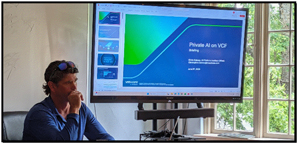
I am going to make a semantic distinction here: I am going to call AI applications that run on a single (physical or virtual) machine "local AI," in opposition to VMware's Private AI Foundation (VPAIF), which is composed of many discrete AI-related components that entire organizations rely on.
 [Click on image for larger view.]
And to be sure, VMware has a platform that allows organizations to securely build, deploy, and manage generative AI and large language model (LLM) workloads entirely within their on-premises private cloud.
Both local AI projects and the VPAIF initiative offer the benefits of running AI on your own hardware rather than in a public cloud. Foremost are privacy, data governance, and protection that come with having the data locally. You can keep sensitive data and inference workloads under your organization's control rather than sending them to a public AI service. Cost and efficiency are other factors that come into play. There are horror stories about companies over-consuming the dollars that they set aside for cloud-based AI. When you use your own hardware, you have more control over this and, in many cases, can use in-house resources that have already been fully paid for. Finally, there is the problem of compliance, namely ensuring that organizations remain compliant with local governance requirements and with GDPR and HIPAA.
Speaking of hardware, many people think that you need expensive hardware, such as GPUs and high-speed RAM, to use AI. While it is true that most LLMs run best on such hardware, many LLMs can run on CPUs and server-grade RAM, just not as fast, and the truth is that many organizations have underutilized CPU capacity that can be repurposed for smaller AI workloads, that is, the CPUs are not bottlenecking workloads, and so we have those cycles for AI. The RAM requirements are not as large as you may expect.
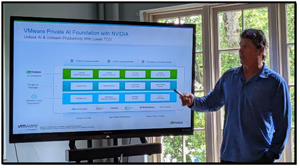
To be sure, VPAIF is an enterprise platform that allows organizations to fine-tune, customize, and deploy generative AI large language models (LLMs) and retrieval-augmented generation (RAG) workflows entirely on-premises for entire organizations. It takes more time and resources to set up, whereas the local AI projects that I have been using can be set up in minutes.
 [Click on image for larger view.]
In short, local AI and VMware's Private AI Foundation both provide the benefits of running AI on your own hardware, but mostly differ in the scale of the deployment; local AI is suitable for a few people and can be set up in minutes, whereas private AI is suitable for large-scale use and takes longer to set up.
 [Click on image for larger view.]
Virtual Machine Requirements
Not only will LLMs run on modern physical systems, but they will also run on virtual machines. As I have neglected this aspect in my previous articles, I will go over a few virtualization platforms.
VMware Cloud Foundation (VCF)
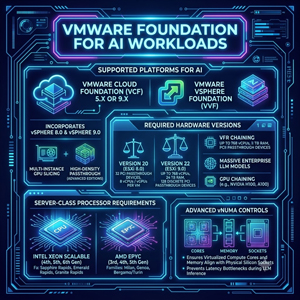
VMware VCF and VMware vSphere Foundation (VVF) support AI workloads and, depending on which edition you run, even support advanced features such as Multi-Instance GPU slicing and high-density passthrough. Modern VMware Cloud Foundation and vSphere Foundation releases include features designed to support AI workloads, particularly when combined with GPU acceleration technologies.
You will also need the VMs to run Hardware Version 20 or, better yet, Hardware Version 22. This matters as Hardware Version 20 expanded the platform to support up to 32 PCI passthrough devices and up to 8 vCPUs or vGPUs per virtual machine. Hardware Version 22 significantly builds on this capability to accommodate massive enterprise LLM models by allowing a single VM to scale up to 768 virtual CPUs and 24 TB of assigned RAM. Additionally, Version 22 supports up to 128 discrete PCI passthrough devices, allowing large-scale clusters to chain multiple enterprise physical GPUs, such as the NVIDIA H100 or A100, together with a single VM.
On the processor side, running these modern VCF deployments requires a server-class system, specifically fourth or fifth-generation Intel Xeon Scalable processors (such as Sapphire Rapids or Emerald Rapids) or newer families like Intel Xeon 6 (Granite Rapids), alongside third, fourth, or fifth-generation AMD EPYC processors (such as Milan, Genoa, or Bergamo/Turin). These processor generations introduce advanced virtual Non-Uniform Memory Access controls to the vSphere Client, ensuring that the virtualized compute cores and local memory allocations align with physical silicon sockets to prevent latency bottlenecks during LLM inference.
 [Click on image for larger view.]
VMware Workstation
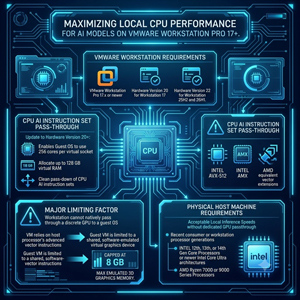
I am a big fan of VMware Workstation, but it has limitations compared with enterprise hypervisors when it comes to direct GPU assignment. That said, to maximize local CPU performance for AI models, you need VMware Workstation Pro 17.x or newer. As with VCF/VVF, the VM requires Hardware Version 20 for Workstation 17 or Hardware Version 22 for Workstation 25H2 and 26H1.
The major limiting factor for running AI on a workstation is that VMware Workstation does not provide the same direct PCI GPU passthrough capabilities as ESXi. Hence, the VM relies heavily on the host processor's advanced vector instructions, limiting the guest VM to a shared, software-emulated virtual graphics device capped at a maximum of 8 GB of emulated 3D graphics memory.
Upgrading the virtual machine to Hardware Version 20 or higher allows the guest operating system to see and tap into 256 cores per virtual socket properly, and allows allocating up to 128 GB of virtual RAM, and cleanly passes down the CPU AI instruction sets like Intel AVX-512, AMX, or AMD's equivalent vector extensions. To achieve acceptable local inference speeds without a dedicated GPU passthrough, the physical host machine requires a recent consumer or workstation processor generation, specifically 12th-, 13th-, or 14th-generation Intel Core processors or newer Intel Core Ultra architectures, or AMD Ryzen 7000 or 9000 series processors.
 [Click on image for larger view.]
KVM (Kernel-based Virtual Machine)
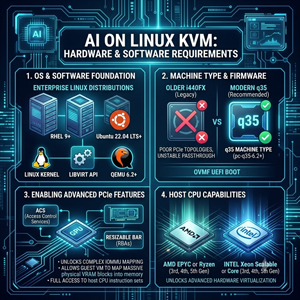
On Linux systems, the version requirements map back to the Linux kernel, QEMU, and the libvirt API. To successfully run AI on KVM, you will need a modern enterprise distribution such as RHEL 9 or Ubuntu 22.04 LTS or later. The environment requires QEMU version 6.2 or later, with the q35 machine type (typically pc-q35-6.2 or newer), paired with Open Virtual Machine Firmware for UEFI boot. Older i440FX machine types do not cleanly support the modern PCIe topologies required for complex IOMMU mapping and stable GPU passthrough.
Utilizing QEMU 6.2 or later with a modern q35 profile enables advanced PCIe features like Access Control Services (ACS) and Resizable Base Address Registers (RBAS), which allow a guest Linux VM running local AI tools to successfully map the massive, contiguous blocks of physical VRAM from an isolated physical GPU directly into the virtual machine's memory map while unlocking full access to hundreds of passed-through host CPU instruction sets.
On the CPU side, to unlock these advanced hardware virtualization capabilities, the underlying bare-metal host should use third-, fourth-, or fifth-generation AMD EPYC or Ryzen processors, or third-, fourth-, or fifth-generation Intel Xeon Scalable or Core processors.
 [Click on image for larger view.]
Hyper-V
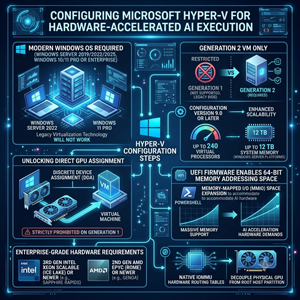
Hyper-V is Microsoft's hypervisor technology. To achieve the raw device mapping required for hardware-accelerated AI execution, Hyper-V generally requires modern VM configurations and GPU assignment technologies. You will need to run a modern Windows OS, such as Windows Server 2019, 2022, or 2025, or Windows 10 or 11 Pro or Enterprise. You will also need a Generation 2 VM running Configuration Version 9.0 or later. This supports scalability limits of up to 240 virtual processors and up to 12 TB of assigned system memory on Windows Server platforms. This configuration is critical because Discrete Device Assignment, which is the mechanism Hyper-V uses to assign a physical PCIe graphics card directly to a virtual machine, is strictly prohibited on older Generation 1 architectures.
Generation 2 machines use standard UEFI firmware instead of legacy BIOS, enabling the VM to use PowerShell to expand its Memory-Mapped I/O space to accommodate the massive 64-bit memory addressing space that high-end AI acceleration hardware demands.
As with the other virtual platforms, Hyper-V requires enterprise hardware for stable physical resource mapping and reliable hardware control, specifically third-generation Intel Xeon Scalable (Ice Lake) processors or newer generations like Sapphire Rapids, or second-generation AMD EPYC (Rome) processors or newer architectures like Genoa, which feature the native Input-Output Memory Management Unit hardware routing tables required to decouple the physical GPU from the root host partition.
 [Click on image for larger view.]
Thoughts on Running AI Locally
When I began researching how to run large language models without relying on public cloud infrastructure, I wanted to understand the boundary between individual desktop setups and multi-component data center platforms like VMware Private AI Foundation.
What I learned while diving into this is that localized computing offers massive benefits for data governance, regulatory compliance, and cost predictability, but it requires aligning your underlying local configuration with specific CPU and GPU configurations. As in previous articles, I ran AI on physical machines. In this article, I looked at the most popular virtualization stacks, including VMware Cloud Foundation, Workstation Pro, KVM, and Hyper-V. I found that, yes, it was possible to use VMs for AI, but achieving acceptable speeds would depend on upgrading to modern hardware that supports instructions like Intel AMX or passing through a GPU. Ultimately, this exploration proved that virtualizing local AI workloads is entirely achievable on existing enterprise clusters, provided you tune your virtual compute cores and memory boundaries to respect the underlying silicon topography.
In part 2 of this article, I will look at how to find the right LLM for your virtual or physical hardware and quantify its performance on that hardware.
About the Author
Tom Fenton has a wealth of hands-on IT experience gained over the past 30 years in a variety of technologies, with the past 20 years focusing on virtualization and storage. He previously worked as a Technical Marketing Manager for ControlUp. He also previously worked at VMware in Staff and Senior level positions. He has also worked as a Senior Validation Engineer with The Taneja Group, where he headed the Validation Service Lab and was instrumental in starting up its vSphere Virtual Volumes practice. He's on X @vDoppler.