A post I wrote in April. "
Coolest Hyper-V Demo You've Never Seen
," was just that. One reader asked "What demo?" as I didn't have much information on the demo other than it was the best Hyper-V demo I have ever been furnished.
Well, now the demo is publicly available. Calvin Zito at HP writes Around the Storage Block and coordinated the recent HP StorageWorks Tech Day. The Hyper-V demo is truly a showcase of the Cluster Extension features of the HP Enterprise Virtual Array (EVA) platform. You can view Calvin's write up on the demo online here.
The video (you can view it here, if you like) shows the eight-node cluster and screen activity, albeit in a limited view. This is effectively the same demo I saw, and it does work.
While it is clear that the demo is showcasing the storage technologies, it is important to note that there are options for Hyper-V. The larger partner ecosystem of storage and management software is critical to seeing Hyper-V make significant inroads into mainstream virtualization. This is also an important time to note that this type of feature doesn't revolve around tight System Center integration. I'm going out on a limb here, but this is one of the fundamental differences between VMware and Microsoft's virtualization approach. System Center will go up and down the stack from the hypervisor to the application, but you are out of luck for multiple site storage management in situations like this example. This Hyper-V long distance migration solution is made possible entirely by the storage management software.
This is one of the best examples of a Hyper-V long-distance migration solution I know of, but are there more? Do you need more stuff like this? Share your comments here.
Posted by Rick Vanover on 06/01/20100 comments
Planning the storage arrangement for virtualization is one of the most critical steps in delivering the right performance level. Recently, I previewed a new storage solution that is a good fit for virtualization environments due to its use of flash media instead of traditional hard drives.
Nimbus Data's Sustainable Storage is a flash-storage-based storage area network. Flash-based SANs have been available for a while, but Nimbus is priced competitively with traditional disk solutions using "spinning rust." The S-class storage systems start at $25,000 for flash storage solutions accessible via 10 Gb Ethernet.
More
Posted by Rick Vanover on 05/27/20105 comments
I am always looking for ways to make a physical-to-virtual conversion go better. While I love the venerable VMware
vCenter Converter
for most workloads, I still find situations where I can't allocate the time to do a conversion this way.
In addressing some unstructured data systems, a new approach revealed itself: the VMDK pre-build. When I say unstructured data, I am simply referring to situations such as a very large number of very small files. While I'd rather deal with a database putting this content into a blob format, I'm often dealt the unstructured data card.
So, what do I mean by a VMDK pre-build? Basically, I deploy a generic virtual machine within vSphere and attach an additional VMDK disk. From that generic virtual machine, I launch a series of pre-load operations onto the additional VMDK disk. The pre-load copies the unstructured data ahead of time to a VMDK disk. This can be done via a number of tools, including the quick and easy
Robocopy scripting options, RichCopy graphical interface and more advanced tools that you can buy from companies like Acronis or DoubleTake. By using one of these tools to pre-populate the VMDK file, you can save a bunch of time on the actual conversion.
Taking the VMDK pre-build route, of course, assumes that the Windows Server has a C:\ drive that is separate of the collection of unstructured data. At the time of the conversion, using VMware vCenter Converter for the C:\ drive will take a very short amount of time. After the conversion, you simply remove the VMDK from the generic virtual machine, and attach it to the newly converted virtual machine. There, you've saved a bunch of time.
The tools above can be tweaked to add some critical options on the pre-load of the VMDK disk. This can include copying over Windows NTFS permissions, as well as re-running the task to catch any newly added data. Robocopy, for example, will proceed much quicker once the first pass is completed and pick up only the newly added data.
The tip I provide here isn't the solution for a SQL Server or Exchange Server, of course, but the use cases can apply to anything that has a large amount of data that may take a long time to convert via the traditional methods.
Have you ever used this trick in performing your P2V conversions? If so, share your experience here.
Posted by Rick Vanover on 05/25/20105 comments
When provisioning virtual machines, either from a new build or during a physical-to-virtual conversion, questions will always come up on how many virtual processors to assign to the host. The standing rule is to provision specifically what is required in order to allow the hypervisor to adequately schedule resources on each virtual machine. The vCPU scheduling is effectively managing simultaneous streams of virtual machines across all available physical CPU cores. A two-socket, four-core server running a hypervisor would provide up to eight cores available at any time. At any time, a number of scenarios could happen including the following:
More
Posted by Rick Vanover on 05/20/20104 comments
In an
earlier post
, I mentioned how there are a few solutions for cloud-based lab management solutions. I have been kicking the tires with
VMLogix's LabManager CE
.
LabManager CE is a fully enterprise-class lab management solution hosted in the Amazon EC2 cloud. What's even more impressive is that the management interface is also in the EC2 cloud (see Fig. 1).
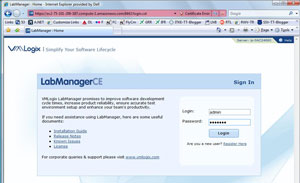 |
| Figure 1. The LabManager CE interface is hosted on Amazon EC2, requiring no infrastructure footprint for cloud-based lab management. (Click image to view larger version.) |
LabManager CE is built on the Amazon Web Services API. EC2 instances are created through Amazon Machine Images (AMIs). An AMI is simply a virtual machine with the EC2 infrastructure. The EC2 infrastructure uses a Citrix Xen hypervisor to run the AMIs. The AMIs can either be built individually on your own environments or you can pull them from the EC2 AMI repository. For the demo I am using, I have a few AMI's pre-positioned for the LabManager CE demo (see Fig. 2)
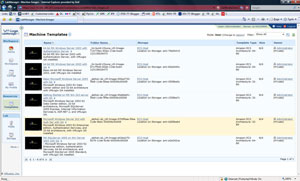 |
| Figure 2. Various AMIs are available to deploy workloads in the cloud. (Click image to view larger version.) |
One of the things I like best about LabManager CE is that each AMI can be deployed with additional software titles installed. This means that a base AMI can be built to the configured specification, but with more software added as part of the deployment with the EC2 infrastructure. Fig. 3 shows an Apache Web server engine being added.
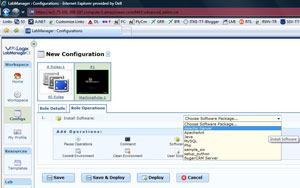 |
| Figure 3. Software packages can be added to the cloud-based workload as it is deployed. (Click image to view larger version.) |
Thus far, I've launched a virtual machine from an existing AMI and added a single software title to be installed once the virtual machine is deployed. But when it comes to lab management, there are going to be other users that will need infrastructure on demand.
LabManager CE's user profile management is sophisticated in that each user can be configured with a personal portal on EC2. Basic options include setting up how many virtual machines the user is able to launch and how much RAM they can use. These are direct correlations to Amazon Web Services infrastructure charges, so this allows a cap to be put on the expenses per user. Fig. 4 shows a user being created with these options.
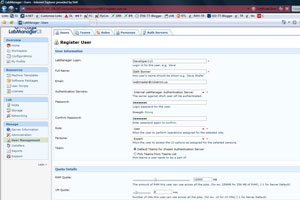 |
| Figure 4. Users can be added with basic parameters, as well as extended options within LabManger CE. (Click image to view larger version.) |
Future Options with Network Connectivity
When it comes to cloud-based lab management solutions, there is one clear obstacle related to network connectivity. Enterprises simply don't want this traffic running over the Internet at large. The solution lies with the forthcoming features that will be delivered via Amazon's Virtual Private Cloud (VPC). In my discussions with VMLogix and other cloud solutions providers, this is by far the number one topic being addressed with all available resources. VPC is still officially a beta and is an Internet-based virtual private network to cloud based workloads. Once VPC is a finished product from Amazon Web Services, it will be clear that VMLogix and other cloud partners will have incremental updates to their products to roll VPC into their products.
This is a very quick tour of VMLogix's cloud-based lab management solution. When it comes to moving a workload to the cloud, I can't seriously take the solution forward until something like VPC is a refined product. Like many other administrators, I want to see how this will work from the technical and policy side, and how it would fit into everyday use for a typical enterprise is another discussion altogether. I will say this is much easier than using Amazon Web Services to launch EC2 AMI instances through tools like ElasticFox or just using the Web portal directly.
What do you think of cloud-based lab management? Share your comments here.
Posted by Rick Vanover on 05/18/20100 comments
A
post
by Vladan Seget got me thinking about using virtual machines with various peripheral devices. Systems that require serial, parallel or USB connectivity are in many cases not virtualization candidates. System administrators can utilize a number of options to virtualize peripheral I/O.
For serial port connections, RS-232, RS-422 and RS-485 devices are by no means common but still are in place for line-of-business solutions that may interface to non-computer systems. A number of products are available for these applications. I have used both the Digi PortServer and the Comtrol DeviceMaster series of products. Both applications are similar in that the devices (serial ports) are extended to the Ethernet network via a special driver provided by Digi or Comtrol. They have management software so you can configure the ports to run in RS-232, RS-422 or RS-485 serial emulation mode. Various products support various levels of serial modes. Some are RS-232-only, while others will support all three modes.
For USB peripherals, the de facto product is the Digi Anywhere USB Ethernet USB hub. Like the serial port products, this device will extend USB ports to a server over the Ethernet network. Digi AnywhereUSB now also couples RS-232 serial ports on the same device as USB ports, which is a nice feature.
In both situations, using virtualized peripheral I/O comes with a couple of considerations. If the server (assuming Windows) was converted from a physical machine that had serial or USB ports, the virtual driver will install very easily. For a new-build virtual machine that has never had a USB or serial port installed, it takes a manual process to add the base serial or USB driver to Windows to enable the enhanced driver to work correctly.
It is important to note that virtualized peripheral I/O isn't going to be as fast as the directly attached alternative, so make sure the application in question can function correctly with these devices in use.
For parallel port applications, I'm not aware of any product that will extend a parallel port over the Ethernet network, though they may exist. I've had to provision USB and serial ports to virtual machines, but not yet a parallel port.
Have you ever had to utilize peripheral I/O for virtual machines? Share your comments here.
Posted by Rick Vanover on 05/13/20107 comments
I was explaining the vMotion process to someone for the first time and explained how the migration technology transports a running virtual machine from one host to another. I love my time on the whiteboard, and I simply illustrate the process from each perspective of the core resources of the virtual machine: CPU, disk, memory and network connectivity.
The vMotion event has always been impressive, but it doesn't go without design considerations. Primarily, this traffic is not encrypted for performance reasons. VMware explains that primarily it's the way it is and not to panic. While, I'm not a security expert, I take heed of this fact and architect accordingly.
In my virtualization practice, I've implemented a layer-2 security zone for vMotion traffic. Simply put, it's a VLAN that contains the migration traffic. The TCP/IP address space is entirely private and not routed or connected in any way to any other network. The vmkernel interfaces for vMotion on each host are given a non-routable IP address in an address space that is not in use in other private networks. For example, if the hosts are in a private address space of 192.168.44.0/24 the vmkernel interfaces for vMotion are configured on a private VLAN with an address space of 172.16.98.0/24. Take extra steps to ensure that your private VLAN address space, the 172 network in the example above, is not in use via the routing tables of the ESX or ESXi host.
The default gateway is assigned to the service console (ESX) or management traffic (ESXi). If the private address space assigned for vMotion exists at any point in the private network, this can cause an issue if the network is defined in the routing tables, even if not in use. This is a good opportunity to check with your networking team, explaining what you are going to do for this traffic segment. I've not done it, but IPv6 is also an option in this situation.
Each time I make any comment about security and virtualization, I imagine security expert Edward Haletky shaking his head or piping in with good commentary. Anticipating what Edward would say, some security levels are not adequate with layer-2 only separation. There are two more secure options, according to Edward. The first is to use separate physical media for the vMotion traffic on a completely isolated switching infrastructure and the second is to not enable vMotion.
How do you segment virtual machine migration topic? Share your comments here.
Posted by Rick Vanover on 05/11/20101 comments
One of vSphere's premier features is the Distributed Resource Scheduler. DRS is applied to clusters, but what about exceptions that you may want to implement? Sure, you can use the DRS rules and you will quickly realize that there are still improvement opportunities for extending your management requirements to the infrastructure.
Among the easiest ways to implement an additional level of granularity to a cluster is to implement per virtual machine DRS configuration. The primary use case for an individual virtual machine DRS automation level setting is to keep a specific VM from migrating away from a designated host. Other use cases can include allowing development workloads to migrate freely and not production systems. You can find this option in the properties of the DRS cluster in the virtual machine options section (see Fig. 1).
More
Posted by Rick Vanover on 05/06/20104 comments
While the larger technology ecosystem has fully adopted server virtualization, there still are countless line of business applications that have blanket statements about not supporting virtualization. Infrastructure teams across the land have adopted a virtualization-first infrastructure deployment strategy, yet occasionally applications come up that aren't supported in a virtual environment.
The ironic part here is that if you ask why, you could be quite entertained by the answers received. I've heard everything from vendors simply not understanding virtualization to things such as a customer trying to run everything on VMware Workstation or VMware Server. But the key takeaway is that most of the time, you will not get a substantive reason as to why a line of business application is not supported as a virtual machine.
More
Posted by Rick Vanover on 05/03/20101 comments
For virtual machines that are used in VMware Infrastructure 3, there is some amount of intervention required to get the machine to work with all of the features of vSphere. Ironically, VI3 virtual machines carry the designation version 4. vSphere virtual machines are at version 7.
For a virtual machine to be upgraded to version 7, the upgrade virtual hardware task needs to be completed on the virtual machine while it is powered off. This is quick and easy, but is only the entry point to all of the new vSphere features such as thin-provisioned VMDKs and using the VMXNET3 network adapter. When you do this, it is important to note that a few things may happen to the virtual machine. Here is a list of recommendations to go about upgrading the virtual machine hardware in regards to the networking configuration:
More
Posted by Rick Vanover on 04/29/20103 comments
This week, I again had the opportunity to be on the
Virtumania podcast
with Rich Brambley, Marc Farley and a special SQL server guest, http://www.brentozar.com/ Brent Ozar. One of the points we discussed in episode 9 regarding SQL servers and virtualization was the challenge of performing a physical-to-virtual (P2V) conversion of a database server.
There are many ways to address the P2V task for a SQL database server, and Brent shared one trick that, while so incredibly simple, can really save a lot of time related to the conversion time requirements. His recommendation was to implement SQL-specific technologies such as replication, mirroring or log shipping of the source database server to the new virtual machine build. Brilliant!
For P2V of a SQL server, my practice has been to convert the system drive (C:\) of the source system and utilize one of two recovery strategies. The first is to create the data volume of the SQL server on the destination virtual machine initially empty, then restore a SQL backup onto the new, empty system. While you can convert the SQL database server's data volumes with the SQL Server service stopped, it is usually cleaner to have an absolutely consistent database on the virtual machine. This can be done by restoring from a SQL backup or an agent-based backup if you are using a tool that does this type of protection.
I came across one situation where the SQL data was on an iSCSI volume, and that made for a very straightforward P2V conversion, as the guest virtual machine retained the iSCSI initiator configuration in the virtual machine. I am not yet a fan of having in-guest iSCSI initiator configurations, but in the case of a P2V, I made an exception.
Starting with a clean build of the operating system on the virtual machine is always cleaner than a P2V. That's a big plus for using Brent's recommendation. On the other hand, administrators don't always have all of the resources about an application or database to go through the clean build. Be sure to check out my advanced P2V flowchart for planning your P2V conversion task to avoid any surprises.
When it comes to migrating databases from physical systems to virtual machines, what strategies have you utilized? Share your comments here.
Posted by Rick Vanover on 04/27/20104 comments
Reading through my past blogs, I saw a
nice post
by Vladan Seget on setting a virtual machine's MAC address within vSphere. This is an issue that comes up regardless of virtualization platform and there is no clear way to address fixed MAC addresses other than specifying one in a virtual machine.
Reasons for requiring a MAC address on a virtual machine to be user-specified usually stem from a P2V conversion, where an installed piece of software requires a MAC address as a licensing mechanism. Other situations can arise due to network address control (NAC) systems in use on a network or the Internet, which, again, may stem from a P2V conversion.
Before I explain how to change a MAC address, it is worth outlining a summary view of the MAC address nomenclature. There are six parts to a MAC address. The first three are pairs of hexadecimal numbering that are referred to as a MAC unique identifier. Ironically, these are the unique identifiers of the network interface controller (NIC) manufacturer and are replicated all the time. The last three parts of two hexadecimal numbering is the unique instance of that MAC address from the NIC brand.
Take, for example, the following MAC address: 00-0C-29-D3-88-7C. 00-0C-29 is the MAC unique identifier for VMware ESX virtualization, and D3-88-7C is the specific VM. Each hypervisor and NIC brand has a designated MAC unique identifier. Be sure to see this scorecard of virtual machine MAC address identifiers.
Depending on the hypervisor, the MAC address can be specified a number of different ways. Sun VirtualBox has a field that you can simply type in a desired MAC address. VMware vSphere allows you to specify it within the vSphere Client for user-specified addresses in the range of 00-0C-29-xx-xx-xx. For vSphere environments, if an address outside of this boundary needs to be used, you'll be required to edit the machine's .VMX file.
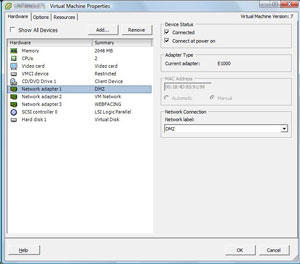 |
| Figure 1. VMware virtual machines can use the default range of MAC addresses, or a user specified address.(Click image to view larger version.) |
VMware has this KB article on how to set a static MAC address for a virtual machine, but I recommend you use this sparingly, and avoid it if possible. One example where a static MAC address definition can be avoided is a system with a DHCP reservation. The reservation could be changed from the current physical server's MAC address to the new, auto-created address of the virtual machine.
Do you find you're having to modify MAC addresses often? I've only had to do it a few times, of which I can count on one hand. Share your tricks and tips here for this practice.
Posted by Rick Vanover on 04/22/20102 comments