I have taken an interest in M&As, so much so that I have decided to become a vDealmaker, or maybe just a vOracle with an imaginary crystal ball. While some of these acquisitions are a bit of a stretch, they sure make sense to me:
Hitachi Data Systems acquires Brocade Communications and Citrix Systems. Tthis would be an awesome move. HDS would have to first IPO, a move they should make, regardless. Nonetheless, it would first offer the IPO and then make a few quick acquisitions. Now, for HDS to take on Citrix would not be very easy with its current market cap, but that move would be awesome. HDS makes more than just storage; they make servers as well quite a few other things. If HDS is serious about the cloud, which they are, a Citrix acquisition would give HDS a strong cloud offering immediately, among other things. At that point, HDS become much more than just a provider of technology to the cloud -- it would become a cloud operator extraordinaire. This merger would definitely challenge Cisco-EMC-VMware and in my opinion that leads to more and better innovation.
More
Posted by Elias Khnaser on 06/02/20117 comments
For those of you that run Remote Desktop Services or Citrix XenApp environments, I'm sure you'd love it if there was a way to "automagically" test whether an application is compatible in an RDS/XenApp deployment. And when the app isn't compatible, wouldn't it be nice if that same tool could tell you what fixes would make the app work?
Well that tool exists and it's free from Microsoft: the Microsoft Remote Desktop Services Application Compatibility Analyzer. I mention XenApp and the reason for that is that any application that will work on RDS will also work on XenApp, since XenApp is an application that requires RDS and extends RDS's capabilities.
More
Posted by Elias Khnaser on 05/31/20111 comments
The need to log in to an ESXi server via the vSphere client is extremely minimal, but there are instances where you may have to log in to ESXi directly. For instance, your vCenter is a virtual server and something goes wrong, and you have to log in to the ESXi host where it resides to do a manual reboot. Another example: You want to monitor your ESXi hosts using a third-party tool, so you will need a user with read-only access.
More
Posted by Elias Khnaser on 05/26/20111 comments
Citrix has acquired Kaviza! I am not sure I can properly articulate how supportive I am of this move or how happy I am to see this happen. Citrix with this acquisition reinforces an already very strong desktop virtualization presence with XenDesktop in the enterprise. What the Kaviza acquisition allows Citrix to do is play in that SMB space at a cost-effective price point.
The last time I wrote about the TCO of desktop virtualization, one commenter asked me to run these numbers for smaller deployments, I promised that I would and I was going to use Kaviza and Unidesk to do so, but never got around to doing it.
In addition to what Kaviza brings to Citrix in terms of better SMB market penetration, there are so many synergies between these two companies. As you may know, Citrix had invested in Kaviza and Kaviza uses Citrix's ICA/HDS protocol as its remote desktop protocol. In addition, you can deploy Kaviza with either VMware's ESXi or Citrix's XenServer.
This is such a well-timed move. I used to be a bit weary when suggesting solutions to customers from smaller companies for obvious reasons: Will this company make it, what will happen to support, etc.? But now that Kaviza is part of Citrix, SMB customers now have a cost-effective, intelligent product that they can deploy and use. I wonder what Citrix will rename this product to? XenDesktop Lite? XenDesktop VDI-In-A-Box? I also wonder what Citrix will integrate into the enterprise versions of XenDesktop. Will they use the Kaviza kMGR virtual appliance technology?
Now, this acquisition begs the question: How is VMware going to respond to it? And it's not whether it will respond, but how VMware responds. If VMware is serious about desktop virtualization, they really have no choice but to do a similar acquisition that would reinforce their overall VMware View product and if I was a betting man, I would say at VMworld 2011 VMware will announce its acquisition of Unidesk.
VMware and Unidesk have so many synergies and VMware needs Unidesk for many reasons. For starters, VMware never really integrated the profile management solution they acquired from RTOSoft. VMware's ThinApp is a good technology, but ThinApp can't virtualize all applications. VMware needs to do something that augments its feature set if they want to compete against Citrix--and Kaviza--in the SMB and enterprise space. XenDesktop already gives View a run for its money and now the Kaviza acquisition means Citrix solutions will deliver a challenge to VMware's View at the SMB level.
Will Unidesk be VMware's response to Citrix's Kaviza? I predicted in an article on InformationWeek that Unidesk will be bought inside of two years. That was two years ago; let's see how much of an oracle I truly am.
Posted by Elias Khnaser on 05/24/201110 comments
There are so many "as a service" acronyms these days that you can"t even keep up with them. Heck, at VMworld there was a "Party as a Service" (great party, by the way; you all should attend).
Seriously, though, I now have a barrage of e-mails and queries about the difference between the three main types of services: Infrastructure as a Service, Platform as a Service, and Software as a Service. And what people are asking for is an explanation in plain, simple English, without fancy and elaborate market-speak, with examples that can help them wrap their heads around what these are, how they may fit, etc.
So, this blog is all about simplifying what these services really mean. I'm confident that I've answered you all adequately. Here goes:
IaaS -- I have decided to start with the easy one. IaaS is simple: Instead of spending CapEx to build out hardware and purchase physical servers, network equipment and storage, you can very simply go to the cloud. Amazon with its EC2 offering is one such IaaS, where you can request the services of a virtual infrastructure.
And what does a virtual infrastructure include? Well, everything. You can build virtual servers, virtual desktops, network load balancers, control firewall access, etc. It's exactly the same resources with exactly the same approach you have in your datacenter today, except all of it is virtualized and you don"t spend the upfront CapEx. You buy what you need when you need it. More important, you scale when you need less, without having to worry about all the facilities requirements that you would normally consider.
PaaS -- People usually get IaaS and SaaS, but you throw in PaaS and things start to blurred and confusing. So, what is the difference between PaaS and IaaS? And what is the difference between PaaS and SaaS? Let"s take a closer look.
PaaS is the future of cloud because it re-architects the way developers write applications and deliver these applications to users. PaaS is a platform that gives developers everything they need from an infrastructure stand point to write and deliver applications. And so, you might be saying, "Eli, that is the standard definition, which confused us in the first place!"
Ok, let"s break it down. Today, you purchase an application and when it comes time to install it, you have decisions to make. If it is a personal application, you have to provide the platform for this application to be installed, correct? You have to look at the system requirements: determine what OS it was written for, hardware requirements, and so on. Once you've sorted that all out, you acquire all the hardware and software, configure everything and install your application.
IT departments of all sizes follow a similar process when deploying an enterprise application. You need a database, a domain controller, a Web server and a few application servers...all these servers in order to deploy a CRM application. So, think about what you just did: You created a platform upon which your application can be installed. Now this application that you purchased was written and developed to be deployed in this manner.
Now, what happens when you deploy enterprise class applications? You start to consider high availability using clustering, scalability, security etc. Well what if there was a way for you to deliver applications to users differently? Instead of the developer writing an application that is stand-alone and does not take into account high availability or security, etc., what if they wrote the application against an online platform like Windows Azure, which, by nature provides scalability, high availability security and more? Would that not be easier?
Want more specific examples? Take a look at what Salesforce is doing with its Force platform. You can build an online presence with all the needed components to run your business. PaaS will provide all the back-end databases needed, workflow management, application servicing and so on.
How many times have you been faced with a situation where you were given an application by someone in the business unit that was purchased without consulting IT? And how many times have you had to deal with applications that don"t scale well, that don"t install on servers very well, that were written to support only Microsoft Access and you want to use this application for 400 users? How many times have you pulled your hair out because no matter how much hardware you throw at an application that's poorly written, the performance is the same? Would it not be easier if developers were writing applications against a very specific platform that inherently has built-in provisions to address all of the listed concerns? Would that not be a welcome thing? Well behold, I give you PaaS. (Whew!)
SaaS -- This one is easy as well; it is based on the concept of renting applications from a service provider and not worrying about installing or configuring, etc. And now you're thinking, "Eli, you confused me here; is that not PaaS?" The answer to this million-dollar question is that the final developed application on PaaS becomes a SaaS. Most of the applications that will be written against PaaS will use a shared platform like Azure.
Now the trick with these new forms of software-as-a-service is that individually they are self-sufficient and great, but how do I tie them together in order to create my organization? How do I get a collection of SaaS and allow groups of users access to them? Where will my authoritative directory like Active Directory be? These are all valid questions and the answer is that identity management will play a central role in tying all these applications together to form a logical entity for an organization that can easily manage user access to applications. Many companies are making moves in that direction, such as VMware's Project Horizon and Citrix's Open Cloud, to name a few.
The bottom line is, with the cloud we are not just porting our existing physical infrastructure to a virtualized environment and continuing to do business the old-fashioned way. We are changing the way applications are written and delivered, and with that, everything changes.
Posted by Elias Khnaser on 05/19/20117 comments
I'm a big fan of Citrix Provisioning Services, both in streamed VMs and in streaming to physical desktops or servers. That being said, tweaking PVS for optimal performance is an important part of a successful implementation.
In my experience working with product and rolling it out, I have gained some significant tweaking skills that I hope will help you with your deployment. One of the tips I want to share with you today is "Disable Intermediate Buffering."
By default, the target device software dynamically determines whether or not to enable or disable intermediate buffering based on the size of the target device local hard drive. If the target device local hard drive is larger than the vDisk being streamed, it automatically enables intermediate buffering; if it is smaller, it disables it.
Now, in my deployments I have found that disabling intermediate buffering yields significant performance increase of the target device, both in boot time and in ongoing stability and performance.
So, what is intermediate buffering and why does Citrix not disable it by default? Tha'ts not so simple to answer. Intermediate buffering is actually a good thing if the hard disk drive controller can take advantage of it, as it improves write performance by leveraging buffering. This is a great thing if you are using server-class hardware. The problem is most target device hardware does not support this feature. As a result, performance is significantly degraded.
Now keep in mind that in most of my deployments where I have streamed to physical desktop that are 3 years or older, I have disabled intermediate buffering. However, in deployments where I have streamed XenApp to physical servers, I have left the setting at default and the performance was excellent -- this is due to the fact that the disk controller understands and can take advantage of the feature.
When I have streamed to VMs also running on server class hardware I have not had an issue, so in my experience this has been detected when streaming to physical desktops, typically in school deployments where we use PVS in the labs with older machines.
If you are experiencing performance issues with PVS or slow boot times and have exhausted all the traditional troubleshooting steps, disable intermediate buffering and give me a holler if it works.
To disable follow these steps:
- Change the vDisk to Private Image Mode and boot the target device
- Open the registry and navigate to HKEY_LOCAL_MACHINE\SYSTEM\CurrentControlSet\Services\ BNIStackParameters
- Create a DWORD value name: WcHDNoIntermediateBuffering and give it a value of "1"
- Put your vDisk back into Standard Image Mode
Once you reboot, you should immediately notice the performance difference by how fast you get to a login screen. If you have been experiencing frequent target device freezes, this should also take care of that.
Consequently, if you want to enable intermediate buffering, you can do that by setting the registry value to 2.
There is a third value available, which is "0." It's the default value when the registry key is not present and dynamically determines whether to enable or disable intermediate buffering.
Posted by Elias Khnaser on 05/17/20113 comments
One of the cooler announcements from Microsoft this year was the release of Windows Server 2008 SP1, which included several enhanced features for key components. One in particular that I am excited about is the inclusion of RemoteFX directly into a Hyper-V server. This is huge especially for desktop virtualization enthusiasts like me.
Let's walk through configuring RemoteFX for Hyper-V R2 SP1.
- It is important to note that your very first step before configuring or enabling RemoteFX should be to install the drivers for the graphics card; otherwise, Hyper-V will not be able to provide that card as part of the virtual hardware later when you try and add it to a virtual machine.
- Open Server Manager by going to Start | Administrative Tools | Server Manager
- Expand the Roles node on the left and click on Remote Desktop Services
- Under Role Services, click on Add Role Service
- Find the Remote Desktop Virtualization Host and select the check box next to it to enable it
- You will then be able to select the RemoteFX checkbox; do that as well
- Click on Next and then on Install to get the process going
- When the wizard completes the configuration click on Close to exit
Once you have successfully installed and configured RemoteFX on the Hyper-V host, you will be able to configure virtual machines with the RemoteFX #D Adapter.
When configuring your VMs with RemoteFX, be careful how many monitors you choose to support and the maximum resolution for each. These settings directly impact and affect the amount of GPU memory needs to be reserved on the Hyper-V host. Of course the more monitors with high resolution that you configure per VM, the fewer VMs you can configure with RemoteFX. Be careful and give users exactly what they need, not more than what they need, which is what we tend to do with all virtualization technologies these days. Resources still matter, so use them wisely.
Now, let's configure the maximum number of monitors and their resolution:
- Click on Start | Administrative Tools | Hyper-V Manager
- Locate the VM you want to configure for RemoteFX and make sure it is powered off
- Highlight the VM and in the Actions pane, select settings
- In the Navigation pane select RemoteFX 3D Adapter
- You should now be at the RemoteFX 3D Video Adapter page
- Specify the number of monitors and their resolution
- Click OK to commit the changes to the VM virtual hardware
It is important to note that when you are using the RemoteFX 3D virtual adapter, you will not be able to connect to your VM using Virtual Machine Connection. Instead, you should use the Remote Desktop client to connect to that VM. If, for whatever reason you need to use the Virtual Machine Connection, you will need to remove the RemoteFX 3D virtual adapter.
I am curious: How many of you are using RemoteFX with VMs and how do you like it?
Posted by Elias Khnaser on 05/12/20111 comments
Cloud computing has come a long way from being just another marketing buzz word. We are finally at a point where we are able to define it, give it shape and understand what it will look like moving forward.
I am a big champion of the idea that in the next 10 to 15 years, IT will be in the business of building and running datacenters, and move completely into public clouds. In the interim, however, we still have a long way to go. Some even argue that we will have a mixture of private and public clouds.
Today, most of the products and the development being done is focusing on the idea of private and public clouds, where you can leverage and intermix these clouds to satisfy resource needs for your organization at a particular period in time (such as end of month usage bursts, etc.).
VMware and other companies are leading the charge in building software and solutions that enable private clouds, but also interconnect private and public clouds.
Now, if the concept of private clouds takes off, at what point will VMware and others consider building platforms which allow private clouds to contribute resources to the public cloud? In most datacenters -- and I emphasize most, not all, datacenters -- we still have resources that go unused, whether it is after hours or on weekends or simply because we overprovisioned our datacenter. If our datacenter transforms into a private cloud against which we can configure and set SLAs to secure the resources we need to run our business, wouldn't it be a good idea to rent the remaining resources to the public cloud?
Think of it this way: Most telcos and all the large computer hardware manufacturers (like HP, IBM, Dell, Cisco, etc.) are building public cloud offerings of some sort. If there was a way for them to allow private clouds to contribute resources, would that not be a win-win for everyone?
All of a sudden, your overprovisioned private cloud is making money, and for those that will say, "We are not in the business of selling clouds," you would not be. Your private cloud is more often than not already in an outsourced datacenter that the large public cloud providers already own. Your contribution to the public cloud can go against your monthly cost of occupying that space.
Folks, we have done this before. It's not rocket science. Our energy companies frequently use or leverage energy in the form of electricity gathered from private sources. They attach that private source to the electric grid and harness that power. Heck, some countries do that to aid neighbors that don't have the CapEx to build their own infrastructure.
You are probably wondering at this point, "Eli, how is your prediction of public cloud going to become a reality in 15 years, if this is the case?" Easy. Remember, your private cloud exists in a co-located datacenter; you have gone down the route of private cloud for many reasons (public clouds are not ready, not secure, etc.). If, in 15 years they are ready, then what is to stop you from turning over your private cloud completely to your public cloud provider and simply paying as you go?
And so the question becomes: Who will be first to market with a product that would allow private clouds to feed the public cloud? VMware's vCloud Director is definitely is contender. The idea would almost mimic what's already happening in the gaming industry. Today, if you want to play an online game, you would connect to a broker server which connects you to the rest of gamers out there. Could VMware build a proxy server which would act as the medium that brokers private clouds which yields resources to public clouds?
I'd love to hear your thoughts.
Posted by Elias Khnaser on 05/10/20111 comments
I have been chatting with colleagues about the need for WiFi in the next five years and we seem to be a bit split. So, I decided to "use a life line" and reach out to the audience for help. My thought process is, why will organizations need to build WiFi in five years or more when they can unload this task on the mobile carriers? With the inevitable adoption of 4G or better, why would you continue to build and invest in that infrastructure? I take my argument one step further and say, you can at that time lease some sort of an antenna from mobile carriers and place on your premises for best and optimal signal reception and performance.
More
Posted by Elias Khnaser on 05/05/20112 comments
As virtualization sets in even further within organizations and administrators are comfortable with the usual daily tasks, some have started to look at a bit more advanced tasks. Some are setting up Microsoft Clustering to provide even higher availability than what is built into the virtualization hypervisor for those important services that an organization needs.
There seems to be some confusion how to setup Microsoft clustering in a vSphere environment. I have been asked how to perform this task several times in the last three weeks, so I figured I would blog about it in case others were looking for answers and a simple straight forward step-by-step.
While there are many different types of Microsoft clustering available, I will focus on clustering multiple VMs across different vSphere hosts. For the purposes of this example, we will use Raw Device Mappings presented directly to the VMs.
What I am trying to portray here is exactly the same scenario you would face if you were clustering in the physical world. So for our example, we have provisioned 2 LUNs, one which will act as our "quorum" LUN and another which will act as our "data" LUN.
Now keep in mind, for the purposes of this exercise we will not discuss how to configure Microsoft clustering services, as you should be familiar with that or you should seek detailed documentation to get you up to speed. What we will cover is the underlying infrastructure and how to prepare the VMs to see both LUNs.
I'll break up the process into three sections. First, we'll focus on general configuration, so that we can set up the nodes in sections two and three.
So, let's first do some general configuration:
- Provision the LUNs needed for your clustering needs. In our case, we're provisioning two LUNs and we present them to the vSphere cluster so that all ESX hosts can see these LUNs.
- If you are using DRS in the your vSphere cluster, create an affinity rule that separates the VMs, which are part of the cluster. That way, they never exist on the same ESX host at the same time.
- It is important to note that you must have your VMDK in Eagerzeroedthick format when using any form of clustering. If you are deploying a new VM, you can select the check box next to "Support clustering features such as Fault Tolerance"; this will force the Hard Disk to be in Eagerzeroedthick format. If you are deploying from a template, the easiest way to zero out your disk is to browse to it in your datastore, find the VMDK in question, right-click it and click inflate. One other method which will force Eagerzeroedthick is to initiate a Storage vMotion and change the disk mode to Thick. The Thick option during a storage vMotion is Eagerzeroedthick.
Let's now configure Node 1:
- Right-click the VM and select Edit Settings.
- Click on Add and select Hard Disk.
- Select Raw Device Mappings.
- In the following window, you should see both your LUNs. (If you don't you need to rescan your HBA cards and try again. If you still can't see them, consult your storage administrator, before proceeding here.)
- Select one of the LUNs and click Next.
- This next screen prompts for a location where it can store a stub (pointer file) that points to this RDM. I recommend storing it with the VM for simplicity.
- The next window prompts for the compatibility Mode; select Physical.
- Up next is the Advanced Options window. This is important! You need to select a new SCSI controller and to do that, click on the drop-down menu and choose a different SCSI controller. This automatically creates a new SCSI controller and associates the new LUN to it (see Fig. 1).
- Click Next and Click Finish.
- At this point you should be back at the Edit Settings window. Select the newly added SCSI controller, which should be labeled SCSI Controller 1 and set the SCSI Bus Sharing to Physical (see Fig. 2).
- Repeat these steps to add the second LUN.
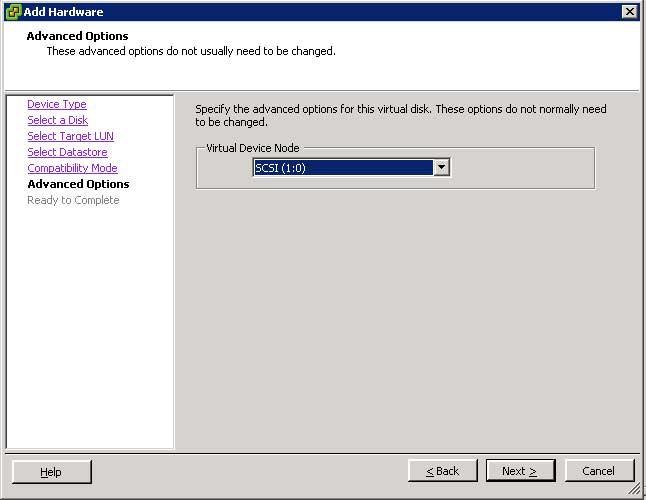 |
Figure 1. Selecting a new SCSI controller. (Click image to view larger version.) |
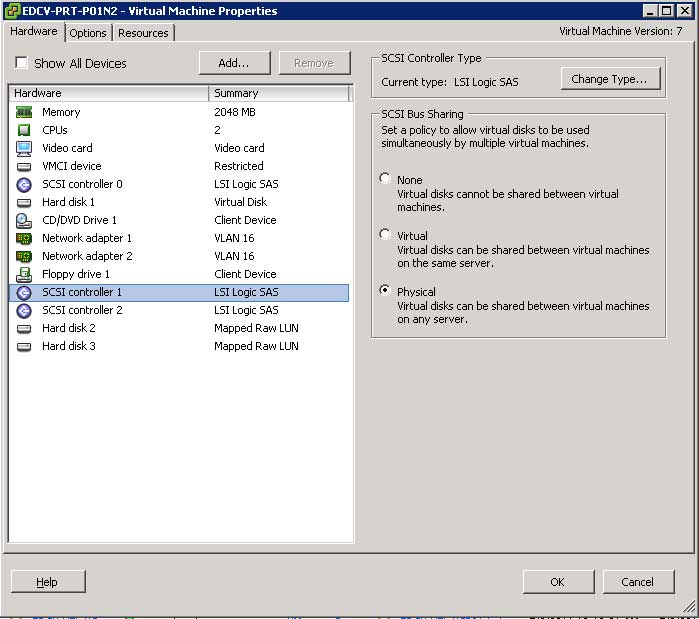 |
Figure 2. On SCSI Controller 1, set SCSI Bus Sharing to Physical. (Click image to view larger version.) |
When you complete all these steps, you should end up with three SCSI Controllers: 0, 1 and 2. Only SCSI Controllers 1 and 2 should be set to SCSI Bus Sharing Physical. SCSI Controller 0, which typically is associated with the Hard Disk that has the OS, should not be modified.
Node 2 is not difficult to configure but is detail-oriented, so follow these steps closely:
- Right-click the VM and select Edit Settings.
- Click Add and select Hard Disk.
- Select Use an existing virtual disk.
- Browse to the location where the LUNs were added on Node 1. If you don't know where the LUNs were added on Node 1, right-click that VM, click Edit Settings and click Select Hard Disk 2. On the right side you will see the location where it is stored. This will give you enough information to find the datastore and locate the VMDK.
- The next screen should be the Advanced options screen again. IT IS CRITICALLY IMPORTANT that you make sure to associate the Hard Disk with the same SCSI Controller on Node 1. So, if you used SCSI Controller 1:0 for the quorum LUN on Node 1, make sure you are using the same SCSI Controller in these steps as well.
- Once finished, you should be at the VM Edit Settings window. Select the newly added SCSI Controller and set its Bus Sharing to Physical.
- Repeat the steps to add the second hard disk.
At the successful completion of these steps, both your quorum LUN and your data LUN should be visible by both nodes of the cluster and ready for further configuration.
Now, it is worth noting here that vSphere does provide an easier way of deploying clustering, known as Fault Tolerance. FT, for those of you that are not familiar, protects a VM by creating a secondary VM in its shadow and configures the second VM in lockstep with the first. This means that every task executed on VM1 will immediately be executed on VM2. In the event of a failure, VM2 will assume the identity and role of VM1 without any loss in service. FT, however, is a first generation technology and has several limitations. In any case, it's technology that is very much worth following especially since we are on the heels of vSphere 5--it's bound to have improvements to FT.
Posted by Elias Khnaser on 05/03/20115 comments
Last time, I blogged about the different layers of abstraction and how we live in the age of abstraction. Now, I want to focus your attention on one of those abstraction layers: user virtualization. (No, not literally; you are not going to get off that easily by virtualizing your users) It's also known as user workspace virtualization.
Some of you are already nodding, yep, a fancy name for profile management or a roaming profile look-a-like. The truth is, user workspace virtualization is advanced and true profile management, whereas roaming profiles, mandatory profiles; GPOs, etc., are very limited in what they offer.
Let's begin by saying that with traditional roaming profiles, you are limited in terms of what is captured to everything in the user's specific folder. More specifically: It's whatever is modified in the registry key Hkey Current User (HKCU) or other application-specific settings that are saved in the user's profile directory.
Roaming profiles are also cumbersome and difficult to manage. If you've ever used roaming profiles, you inevitably hate them. They slow logons and logoffs, and all the changes the user makes are committed once the user logs off. This can cause issues, because if a copy process times out, the network fails or for whatever reason you don't get a clean logoff, you also get profile inconsistencies, corruptions and all sorts of headaches.
Roaming profiles are also limited to the same operating system, which means if you migrate from XP to 7 or 8 or 9, you have to re-create the profile and reconfigure application settings, etc. This process is long, cumbersome and expensive and you have to do it every time you change OSes. What if there was a way to alleviate that?
Let's circle back to user workspace virtualization, which allows you to deliver a consistent user experience across different types of endpoints and across different flavors of Windows. UWV captures more than just the HKCU and the user profile directory. It captures application- and user-specific data that can be applied across operating systems. A perfect example is if you are migrating from XP to Windows 7 you can use a UWV tool to streamline that process.
Where else is this a good fit, you might ask? Of course, no Eli blog would be complete without mentioning desktop virtualization. If you have embarked on a desktop virtualization project or if you are about to, make sure you have a user workspace virtualization strategy properly crafted. Whether you use a persistent or non-persistent image, the technology is needed. However, it definitely flourishes' when combined with a non-persistent, read-only-image because it delivers to the user the same user experience consistently and it completely eliminates profile corruption, slow logons and logoffs. It does this by copying files to a network share immediately; it does not wait for logoff to initiate a copy of the changes as is the case with traditional roaming profiles.
One other differentiator with roaming profiles: You copy over your files every time. That is, every time you log in, that NTUSER.DAT file is copied down to replace what is there or it creates a new local profile. On the other hand, UWV simply copies the necessary settings, not everything in the profile directory.
Why is RES Software in the spotlight? Well for starters, it has an awesome UWV solution. RES also has a technology called "Reverse Seamless." What this allows you to do is to serve up locally installed applications into your VDI or Terminal Server session. This is really cool: Picture an environment where you want to roll out VDI for instance, but you want to do it slowly. Maybe you have certain applications that are installed on desktops for special users and you want to be able to make these applications available to your VDI or Terminal Server sessions. You most definitely can use reverse seamless. Think of it as "XP Mode."
If you have not looked into UWV, now is a great time to do so. Whether you are planning a desktop virtualization rollout now or later, abstracting the user workspace from the operating system and the applications is definitely the correct step in the right direction. Later, if you decide on desktop virtualization, a big chunk of that project would have been already figured out. If you decide never to adopt DV, then you have streamlined and enhanced user profile management and made the next OS upgrade so much easier while providing interoperability between OSes.
Posted by Elias Khnaser on 04/28/20113 comments
I could not begin to count the number of times I have been asked to help custom brand a Citrix Web Interface site. My dilemma is, why has Citrix not made this process an easy one? With all the content management systems out there, why is it so cumbersome? I am wondering if it is viable for Web Interface to be built or even integrated with a content management system like WordPress or DotNetNuke. While we wait for Citrix to make it easier for us to custom-brand Web Interface, here is a quick and dirty how-to.
More
Posted by Elias Khnaser on 04/26/20111 comments