In-Depth
Hands-on Review of Aipex, an AI-First Remote Monitoring and Management Solution
Below is my hands-on review of the first AI-first remote monitoring and management solution I came across, discovered while reviewing a Lenovo P16 Gen 3 laptop.
It Started with a Post.
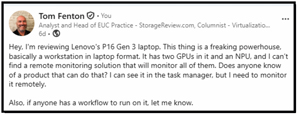
While working on my review of the Lenovo P16 Gen 3 (an AI Workstation in laptop clothing) I had a problem; I couldn't find a remote monitoring tool that would let me monitor the laptops' two GPUs and NPU, as most of the tools I had used in the past were designed in the pre-AI era, before NPUs were invented, not to mention powerful GPUs like the P15 NVIDIA RTX 5000 that the laptop had.
As a last-ditch effort to find a monitoring tool, I posted on LinkedIn asking if anyone knew of one.
 [Click on image for larger view.]
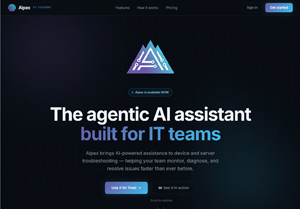
Shortly after, Andy Poulter responded that I should look into
Aipex
.
 [Click on image for larger view.]
After looking into it, I realized that the company was co-founded by Jon Rolls, whom I had worked for at another company and respected. I went to the website, signed up for the free version, and after getting an account, was up and running in 5 minutes.
A few days later, Jon reached out to me and asked me how I liked the product. I told him that the product was doing great. He offered to turn on the Pro version for me. I told him to go ahead and enable it, and I am so glad that he did, as the AI assistant was a game-changer for me.
In the rest of this article, I will go over some of the features in Aipex, including its AI assistant feature.
Installation
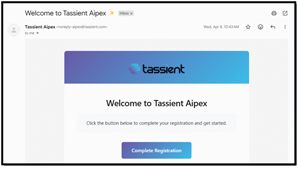
Shortly after requesting the free version of Aipex, I received an email with a link to complete my registration.
Tom's Tip: The website said it can take 24 hours to get the email, but I got mine within the hour.
 [Click on image for larger view.]
I used my Google account to link to my Aipex account, but I could have used an Apple account or just a password. After I created an organization and created an enrolment key, I clicked Get Started and was directed to the Aipex dashboard.
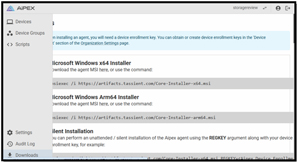
From the download link on the dashboard (the down arrow in the lower-left corner), I ran the command on one of the machines I wanted to monitor using the Microsoft Windows x64 Installer.
 [Click on image for larger view.]
In seconds, the device appeared on my Aipex Dashboard. I repeated the process to install the Aipex installer on a few other machines as well.
SaaS Based Management Plane
The dashboard is a centralized launchpad for monitoring and managing devices. It is accessed via a web browser, so you can gain insights and remediate issues on the systems you are responsible for, regardless of where you are.
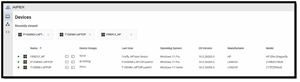 [Click on image for larger view.]
Aipex allows its desktops to be assigned to groups. Those responsible for maintaining these desktops can be assigned roles and permissions to these groups, so only authorized people can access them.
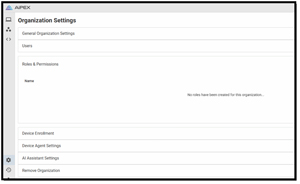 [Click on image for larger view.]
Free Remote Monitoring
The free version of Aipex allows you to monitor an unlimited number of systems remotely.
To remotely monitor my P16, I just needed to select it from the main dashboard.
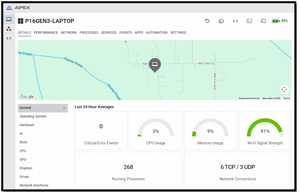 [Click on image for larger view.]
The Details screen provides a high-level overview of the system's hardware and operating system, along with its physical location.
To see the resource usage, I clicked the PERFORMANCE tab.
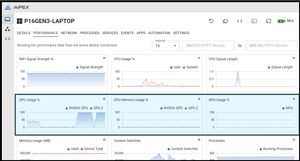 [Click on image for larger view.]
From this screen, I could monitor the system's resource usage, including GPUs and NPU information.
I found the date range useful for showing system activity at a particular point in time. I could see where this would come in handy, say, when a user calls in and says something like, "Yesterday morning," my system was sluggish.
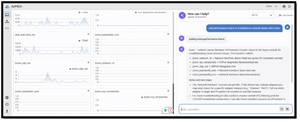
What I found more interesting is that you can add additional graphs by just asking the AI assistant. After I entered "add performance chart that shows disk wait time," the graph was added to my dashboard instantly. But what was more interesting was that I could even ask it to "add performance charts to troubleshoot network issues with Zoom."
 [Click on image for larger view.]
This added 5 new charts specific to Zoom.
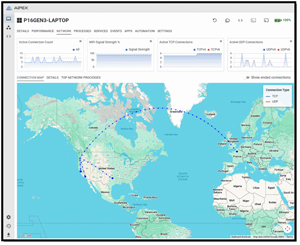
The NETWORK dashboard was interesting as it showed where the active network connections were coming from and going to.
 [Click on image for larger view.]
It also includes a WiFi signal strength graph, which would be handy for diagnosing home users experiencing poor response times from SaaS and other network-dependent applications.
The PROCESSES and SERVICES dashboards provide real-time insights into what is happening on the system. I used the processes dashboard to find that a test I didn't realize I was running was consuming a lot of memory, affecting the results of a benchmark I was running.
I used the service dashboard to verify that an application I need to run on startup was indeed installed as a service.
Free Remote Access
The free version of Aipex lets you remotely access an unlimited number of systems. Using the tabs at the top of the dashboard, you can either access a remote shell to the system or use a remote console on the system.
 [Click on image for larger view.]
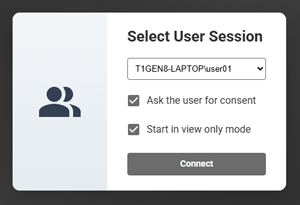
I found the remote features extremely useful and required no configuration or opening of any firewall ports. I used the remote console when I wanted to interact with the system graphically, such as starting my benchmark tools.
 [Click on image for larger view.]
I used the remote console in view-only mode to take screenshots of the system while my tests were running, but in practice, it would allow you to view users experiencing issues in real time.
Tom's Tip: A pop-up will appear on the user's screen when a remote console is attached.
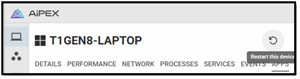
Clicking the circle arrow icon will remotely restart the device.
 [Click on image for larger view.]
After confirming that you want to restart the system, a pop-up will appear to alert the user that the system will restart in 60 seconds.
One remote feature I found very useful, but don't think is included in the free version, is file transfer. I used this to transfer my benchmarking tools to the P16 and transfer the results back to my system.
 [Click on image for larger view.]
AI Assistant
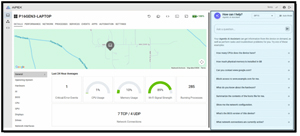
Of course, the heart, soul, and thing that makes Aipex different from the other tools I have seen in this space is its AI assistant, which is accessed on the right side of the dashboard.
 [Click on image for larger view.]
The AI integration lets you ask questions about devices or perform actions on them using natural language, without needing to know the minute details. For example, you can ask it "how full the disks are on this system" and then ask it to "perform a disk cleanup on the device." Or even "if the lack of disk space is causing a problem, do a disk cleanup on it."
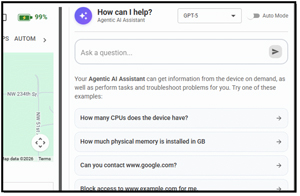
A few things popped out to me right away in the AI console. The first is that you can choose between different LLMs to run against. According to Tassient, this model-agnostic approach prevents them from falling into the trap of tying their platform to a single proprietary LLM. Instead, it allows them to use the best-of-class general-purpose LLMs, so that their codebase never becomes dated.
To help you get started, it comes with predefined AI prompts.
 [Click on image for larger view.]
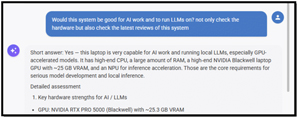
I found that they were a good jumping-off point to dive deeper into a subject. For example, I clicked "What do you know about the hardware?" It came back with basic hardware information when I prompted it further by asking it, "Would this system be good for AI work and to run LLMs on? Not only check the hardware, but also check the latest reviews of this system."
 [Click on image for larger view.]
The results came with a summary of its capabilities, followed by the details. I use this as an example of how flexible the AI assistant is, as you're not limited to predefined reports or scripts.
Tom's Tip: If you want to abort a long-running prompt, click the circle arrow to the right of the prompt box.
The more I used the AI assistant, the more useful I found it, especially for gaining more information on and remediating issues on my devices. For example, instead of going to the dashboard, I would just type in queries like " How much disk space is available on this system and how much of it is free?" "Does this system have the resources to run VMware Workstation? "I even got it to install software on the system by entering "use winget to install GIMP".
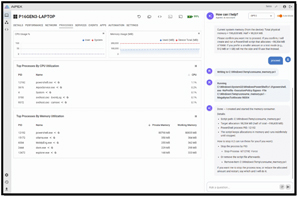
The AI assistant really shows its mettle on the remediation side; I could enter queries like "what process is using the GPU" and then "kill the process." I could even do things like "create and run a PowerShell script that will consume half of the memory on the system" when I wanted to hear the fan kick on.
 [Click on image for larger view.]
I even used the AI assistant to check this system for CVE issues.
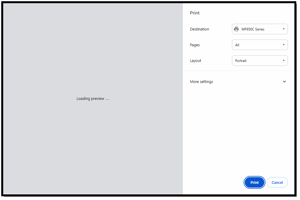
Another time, I had a printer hanging, so I asked the assistant, "Why is the printer hanging?"
 [Click on image for larger view.]
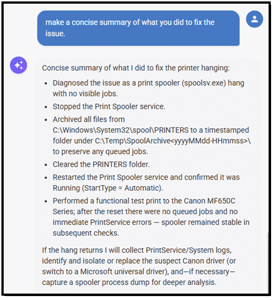
The AI assistant fixed the issue automatically. After the problem was fixed, I asked the AI assistant to write a concise report of what it did so I could put it in a help ticket.
 [Click on image for larger view.]
Tom's Tip: Occasionally, I had to type "proceed" to continue the AI workflow.
Application Remediation
As Aipex uses a powerful AI engine, not only does it remediate OS issues, it can also deal with applications. A prime example of this was switching from a dual-monitor setup to a single-monitor setup. I could no longer see WhatsApp. I have seen this before, and it is due to a stored register setting in the application.
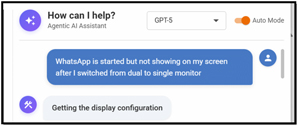
Instead of investigating how to fix the problem and manually editing the registry, I had the AI assistant handle it by typing "WhatsApp is started but not showing on my screen after I switched from dual to single monitor"
 [Click on image for larger view.]
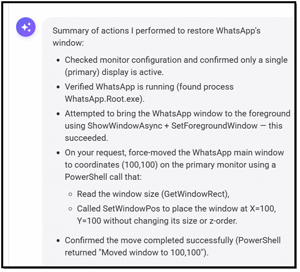
A few seconds later, it presented a solution and asked me if I wanted to implement it. I told it to proceed, and seconds later I could see WhatsApp again. I asked for a summary, and it gave me a list of the actions that it performed.
 [Click on image for larger view.]
That is when I had an epiphany of the power of Aipex. Yes, I could have spent 10 minutes researching the issue and another 5 minutes implementing it, but by using Aipex, I solved it in less than 15 seconds!
Scripts
A feature added right as I was finishing this column was the ability for scripts to run on devices. Although I didn't get much of a chance to work with them, I could instantly see the value in them. I could have used the AI assistant to perform the actions that scripts did, but sometimes you will want to run a predefined script on a device or a group of devices. To test this feature, I created a script to show the local users on a Windows system. I then selected the device that I wanted to run it on, selected the script, and ran it. Instantly, I was presented with the script output.
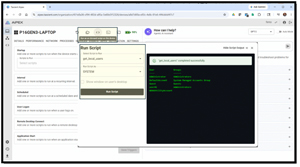 [Click on image for larger view.]
Not only can you run scripts instantly on a device, but you can also use various triggers to have them run.
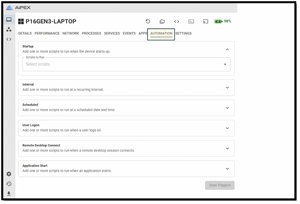 [Click on image for larger view.]
The scripting feature supports Linux, macOS, and Windows, and supports various scripting languages across these platforms.
Linux and macOS
Another feature I just didn't have time to explore is its support for Linux and macOS. I can see how the AI assistant can be a great help to administrators who aren't familiar with the nuances of these platforms, enabling them to complete tasks on them.
I use the find command in Linux to locate files; I have no idea how to do this on Windows. But, using the AI assistant, I can type in "find the Geekbench.exe file on this machine." This is a simplistic example, but I think that it serves to illustrate the power of the AI assistant. Its real power will come into play when you need to identify and remediate issues on platforms you are unfamiliar with.
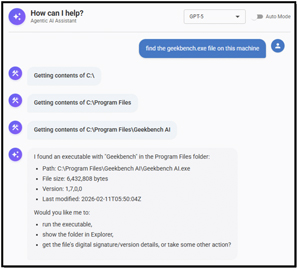 [Click on image for larger view.]
And then for my own edification, I can type in "what command did you use to find the file?"
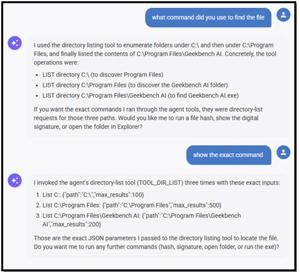 [Click on image for larger view.]
The Company
I had a chance to (virtually) sit down and chat with Jon Rolls about Tassient. Jon is a long-time player, well respected in the EUC monitoring world, and someone I have worked with in the past. He said that not only does Aipex embrace AI in its product, but it also embraces it in its company. He said he is about 6 times more productive when using AI coding assistance than when coding without it. He cautions that it takes a skilled coder to leverage an AI coding tool fully, and then, more importantly, look at its output to verify its quality.
He said that, as he got to start this product from the ground up with a clean sheet of paper, he was able to avoid the mistakes he had seen in other monitoring and remediation products and apply the lessons he had learned over his three decades in the industry to Aipex.
He stressed that Aipex is not an AI bolt-on to an existing product but was designed from the ground up to leverage AI. He further said products designed and built as early as 3 years ago were not designed to integrate AI into their codebase.
He emphasized the depth and quality of Aipex's Remote Control and Remote Shell features. He believes that these features are as good as anything in the industry. Although it is not the most glamorous feature in the product, I feel they rival the best in the industry. I can attest that it was powerful, and I hadn't given it any thought because it just worked as advertised.
Final Thoughts
You can tell that a lot of thought went into designing and implementing this product by people who have been in the EUC arena for decades. Yes, it's still a new product, but from what I can tell, its newness reflects the nice-to-have features it lacks more than its reliability and quality.
I appreciate that the product's price is fair and transparent, and at the time of this writing, there was a free version with remote connection capabilities, but no AI assistant. I appreciate that they advertise their prices, as I hate buying software from vendors that hide them. I hate having to contact their sales department to get a price and then negotiate the price. Often, I feel like it is like buying from a used-car dealer rather than a piece of software.
Downloading and installing the free version of Aipex is a no-brainer, as you can have it up and running in just a few minutes on Windows, macOS, and Linux. As it is SaaS-based, you don't even need to install any management services or components on your systems; you just need to install a small agent on the systems you want to monitor. The paid version, which includes its AI assistant, file transfer, and a few other useful features, is extremely reasonably priced at $50 per month per administrator, with no limit on the number of machines you can monitor and manage.
Aipex can be found on the Aipex website, and I found the Tassient YouTube channel to be a useful resource.
About the Author
Tom Fenton has a wealth of hands-on IT experience gained over the past 30 years in a variety of technologies, with the past 20 years focusing on virtualization and storage. He previously worked as a Technical Marketing Manager for ControlUp. He also previously worked at VMware in Staff and Senior level positions. He has also worked as a Senior Validation Engineer with The Taneja Group, where he headed the Validation Service Lab and was instrumental in starting up its vSphere Virtual Volumes practice. He's on X @vDoppler.