In-Depth
Does RAM Matter in a Modern, AI-Enabled Laptop?
The ThinkPad P16 Gen 3 (21RRZD7UUS) I used in a recent review came equipped with the NVIDIA RTX PRO 3000 Blackwell GPU and 16 GB of RAM. I wasn't initially too concerned about the RAM footprint since most local LLM workloads were slated to run inside the GPU's dedicated 12 GB VRAM buffer. But the more I used it, the more I realized the RAM seemed to bottleneck me when running common office applications, especially with many web browser tabs open. So, I wanted to measure and quantify the effect of a system with 16 GB of RAM vs. 32 GB of RAM.
RAMageddon
This system performed well for me when running my office applications. The concern with this system is how much the lack of RAM (16 GB) affects its performance, and whether the CPU and GPU can make up the difference.
This is an issue that we have all been dealing with since "RAMageddon" hit. When I got this system and noticed it only had 16 GB of RAM, my first thought was to go out and buy a couple more sticks to install in it. I realized that RAM prices had increased fivefold, and I got sticker shock when I saw that another 16 GB would cost close to $250! A little bit of research on Amazon showed the extent of this, with prices increasing significantly over the past year.
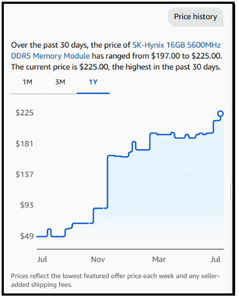 [Click on image for larger view.]
After thinking about it for a bit, I realized I had another system with 32 GB of RAM that was lightly used, which I could swap for the 16 GB in this system.
Before I swapped the RAM in the systems, I wanted to be sure the RAM modules were compatible. Instead of manually researching the compatibility issue, I figured I would try using Aipex, an AI-first RMM and remediation tool I recently reviewed. Asking a single question, I got confirmation within 15 seconds that the Kingston memory modules would work perfectly. I firmly believe that AI will radically change the way we do things in the IT world. You can read more about Aipex.
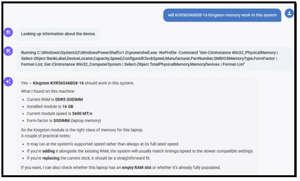 [Click on image for larger view.]
I love that Lenovo makes its ThinkPad laptops serviceable, and that it was easy to swap memory between the two systems.
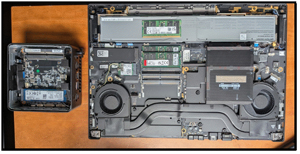 [Click on image for larger view.]
But before doing so, I ran various benchmarks to quantify the difference when I doubled the RAM. I find benchmarking tools a good way to quantify a system before upgrading it. I rely on various tools to cut through marketing hype and measure a device's actual power.
Geekbench Performance
I use Geekbench 6 because it is one of the more popular cross-platform tools for measuring CPU and GPU compute performance, using tests modeled after everyday work tasks, such as photo editing and PDF rendering. It provides a standardized baseline for single- and multi-core processing speeds.
I ran Geekbench with 16 GB and 32 GB of RAM to test the CPU and GPU.
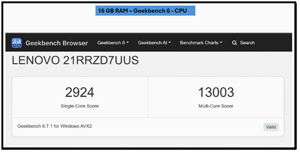 [Click on image for larger view.]
 [Click on image for larger view.]
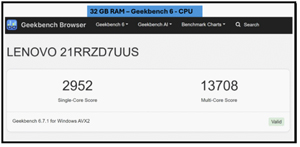
As the CPU test is strictly a processor benchmark, the results were almost identical (2,924 Single / 13,003 Multi on 16 GB vs. 2,952 Single / 13,708 Multi on 32 GB).
However, the OpenCL GPU test provided a surprising result.
 [Click on image for larger view.]
 [Click on image for larger view.]
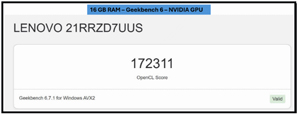
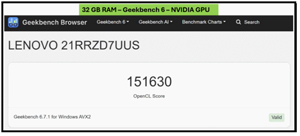
At 16 GB of RAM, the OpenCL score reached 172,311. After I upgraded the system to 32 GB of RAM, the score actually decreased slightly to 151,630. I ran this test four additional times to verify, and each run remained near this lower threshold, showing that GPU-specific synthetic benchmarks can occasionally drop after expanding system RAM pools due to altered staging buffers or system constraints.
Geekbench AI Performance
I use Geekbench AI to evaluate how efficiently my devices handle machine learning and artificial intelligence workloads. Its test performs image classification, object detection, and natural language processing to gauge a system's readiness for modern on-device AI applications.
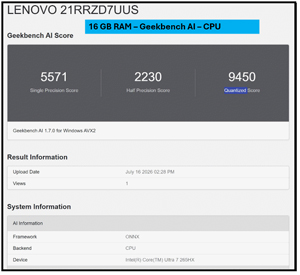
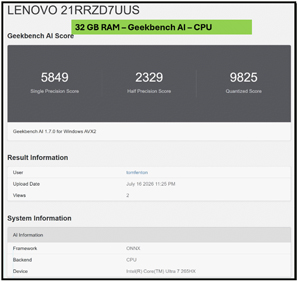
Testing the CPU AI performance yielded 5,571 (Single Precision) / 2,230 (Half Precision) / 9,450 (Quantized) on 16 GB, which moved to 5,849 / 2,329 / 9,825 on 32 GB.
 [Click on image for larger view.]
 [Click on image for larger view.]
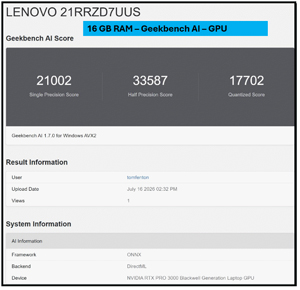
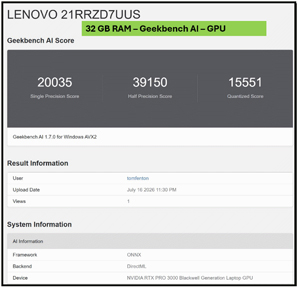
Testing the discrete NVIDIA GPU with Geekbench AI yielded another intriguing discrepancy.
 [Click on image for larger view.]
16 GB RAM Configuration: Single Precision: 21,002 | Half Precision: 33,587 | Quantized: 17,702
 [Click on image for larger view.]
32 GB RAM Configuration: Single Precision: 20,035 | Half Precision: 39,150 | Quantized: 15,551
Notice that while the Half Precision (FP16) score grew by roughly 16.5% once the RAM doubled, the Single Precision (FP32) and Quantized (INT8) scores dropped slightly.
PassMark Rating
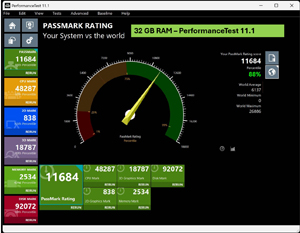
I rely on PassMark PerformanceTest to measure a system's CPU, graphics, memory, and disk. It aggregates the results into an overall PassMark Rating.
 [Click on image for larger view.]
 [Click on image for larger view.]
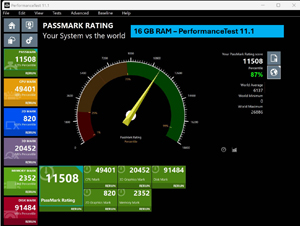
The overall PassMark rating was 11,508 with 16 GB of RAM and was almost identical at 11,684 when upgraded to 32 GB of RAM.
SPECworkstation 4
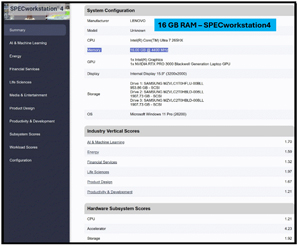
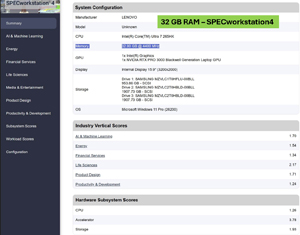
I run SPECworkstation 4 when I need a comprehensive benchmarking score, as it was built specifically to measure the limits of high-end workstation hardware. It simulates intensive, industry-specific workloads across several categories, including media rendering, financial modeling, and scientific computing.
 [Click on image for larger view.]
When I ran SPECworkstation 4 with 16 GB of RAM, the scores were good for a workstation and excellent for a laptop system.
 [Click on image for larger view.]
When upgrading to 32 GB, the scores stayed very stable with minimal fluctuation.
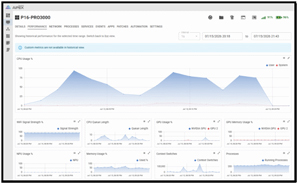
During the SPECworkstation tests, I monitored the system via the Aipex monitoring feature.
 [Click on image for larger view.]
I found that it relied heavily on the CPU while the GPU was used only lightly, and the test did not seem to use the NPU at all.
Why More RAM Can Show Slightly Lower Synthetic GPU Scores
I have a few theories about why the system slowed down slightly on some synthetic tests when the RAM was doubled.
First, upgrading to 32 GB using two matched 16 GB modules activated dual-channel mode, which effectively doubles the system's memory bandwidth from roughly 44 GB/s to 88 GB/s on DDR5. Even though execution occurs on the GPU, DirectML must constantly copy model weights, tensors, and intermediate data back and forth between the CPU (using system RAM) and the GPU (dedicated VRAM) over the PCIe bus.
My primary hypothesis is thermal throttling. Laptops are highly sensitive to thermal limits. Operating two SO-DIMMs instead of one increases the internal thermal footprint slightly. Under continuous synthetic bench stress, the GPU and CPU are likely to hit their thermal thresholds sooner, causing them to scale back boost clocks slightly to maintain safe operating temperatures.
Final Thoughts
What started as a simple review of a laptop evolved into a comparison of three systems with different use cases, and then into a deep dive into RAM and whether you really need a lot of it on your laptop.
This is extremely pertinent in the current high-RAM price environment. My conclusion is that 16 GB is the bare minimum you need for typical office work, but 32 GB is significantly better. Although I could run my applications on the system with 16 GB of RAM, they would feel sluggish at times, limiting the number of open browser tabs I could keep. Synthetic benchmarks stress specific components rather than the multi-application congestion of daily workflows, which is why they didn't fully reflect the real-world performance boost from doubling the RAM.
For AI work, the discrete GPU does much of the heavy lifting. While you can get by with less system RAM when running small models entirely inside the 12 GB GDDR7 VRAM buffer, modern workflows require feeding the GPU pipeline efficiently. During heavier machine learning workloads, system staging buffers and runtime memory footprints will exceed the dedicated VRAM. When this happens, Windows pages data out to shared system memory. A larger, faster shared memory pool prevents severe page-fault stalls and allows DirectML to orchestrate large models far more efficiently.
In summary, I found the Lenovo ThinkPad P16 Gen 3 with its NVIDIA RTX PRO 3000 GPU and gorgeous 16-inch display to be an extremely capable and powerful laptop and mobile workstation for everyday use, except for the most punishing AI workloads; for those, you would want the P16 with the RTX PRO 5000 GPU. I strongly recommend getting one with at least 32 GB of RAM. I also found the 12 GB Blackwell GPU inside is perfectly positioned to handle local LLMs, making it a reliable, future-proof mobile workstation built for the long haul.
About the Author
Tom Fenton has a wealth of hands-on IT experience gained over the past 30 years in a variety of technologies, with the past 20 years focusing on virtualization and storage. He previously worked as a Technical Marketing Manager for ControlUp. He also previously worked at VMware in Staff and Senior level positions. He has also worked as a Senior Validation Engineer with The Taneja Group, where he headed the Validation Service Lab and was instrumental in starting up its vSphere Virtual Volumes practice. He's on X @vDoppler.