One of the hardest aspects of vSphere administration is resuming operations after a major outage, such as a power outage or network outage. Whether or not outages are planned, it can be incredibly inconvenient to stop everything (the easy part) and then resume everything (the hard part).
Restarts can be especially difficult if your entire infrastructure is virtualized. In my vSphere environments, I have a number of network services that are also virtualized,
More
Posted by Rick Vanover on 05/09/20122 comments
I will admit first of all that I am no scripter. But I find that when I go about the task of doing repetitive tasks, PowerCLI (vSphere's PowerShell extension) is the way to go. I usually also gravitate to Alan Renouf's site for a great selection of starter scripts, so cheers to you Alan!
In preparation for an upgrade to vSphere 5 for one environment, I needed to determine where each host was at. Sure, we can look in the vSphere cient and get the build number and something like ESXi 4.1. But without knowing the build numbers by memory, it may not be enough to tell us the entire story.
More
Posted by Rick Vanover on 03/28/201276 comments
If you use any test environments with your vSphere environment, you are likely very familiar with sending the Ctrl+Alt+Insert keystroke to a system when viewing the console. In my lab, I have done a few tests using PXE boot services. I like PXE boot options because they are great for stateless VMs and you can easily test it on scale by booting up a number of sessions at once.
In testing these types of configurations I find, of course, something isn't right. In those situations, the default vSphere boot sequence will show that the VM can't boot. Fig. 1 shows a VM booting with no usable image.
More
Posted by Rick Vanover on 03/14/20122 comments
One of the main sticking points with learning Hyper-V is getting your head around the Clustered Shared Volumes technique to provide .VHD files on a SAN to multiple Hyper-V hosts. The CSV technique is an extension of Microsoft Failover Clustering. Failover Clustering is the "new" name for the technologies formerly known as Microsoft Clustering Services. Setting up a quorum-ready cluster comes with a few prerequisites. Let's enumerate them:
More
Posted by Rick Vanover on 01/11/20124 comments
Many of the vSphere 5 features seem to gravitate around storage, but there are scores of other features that can help you as you work daily in the the vSphere environment. One of those features, multi-NIC vMotion, allows multiple Ethernet interfaces for both standard vSwitches and vNetwork Distributed Switches (vDS) to perform vMotion traffic on multiple interfaces.
By default on a standard vSwitch with two network interfaces and one vmkernel interface, that traffic will only use one port on the vSwitch. With vSphere 5, we can add a second vmkernel interface to that vSwitch and configure adapter preferences to ensure that multiple NICs are leveraged. The first step to making this happen is to have two or more interfaces assigned to one vSwitch. From there, we can add the first and second vmkernel interfaces to that same vSwitch. The IP configuration has to be unique for each vmkernel interface, even though it will reside on the same vSwitch.
More
Posted by Rick Vanover on 12/08/20112 comments
VMware vSphere 5 ushers in a number of critical features which are very dependent on storage. So much so, that it has been dubbed the "storage release." One of the critical things to make the storage features come alive is VMFS-5.
VMFS-3 volumes are very much in play in today's vSphere environments. So much so, that the upgrade process may seem quite daunting to some. While we can simply right-click on a VMFS-3 datastore and update it to VMFS-5, we may be doing ourselves a disservice and missing out on this opportunity to perform some important housekeeping on our most critical resource: vSphere storage. The easy upgrade is shown in Fig. 1.
More
Posted by Rick Vanover on 12/01/20111 comments
Upgrading from ESXi 4 to ESXi 5 can be challenging, especially if you're using the free version of the hypervisor. That's because for the free hypervisor, we don't have the access to the more robust vSphere Update Manager (which makes upgrading very easy).
There are a few options to upgrade a free ESXi 4 hypervisor to ESXi 5. These options are spelled out in the vSphere Upgrade Guide. In this post, I'll show one method and I'll mention the other mechanisms. Basically, the options include using vSphere Update Manager (which is available only with vSphere Essentials and higher), performing a scripted upgrade, using vSphere Auto Deploy, using esxicli or using the ESXi 5 CD.
More
Posted by Rick Vanover on 11/07/20111 comments
Like many other virtualization professionals, I have done most of my work in the type 1 hypervisor space. This has been a reflection of my professional responsibilities as well as whom I try to blog for. To that end, I had up until this time preferred Oracle VM VirtualBox for all of my Type 2 hypervisor usage. In fact, nearly one year ago today, I wrote a column as to why I like VirtualBox.
More
Posted by Rick Vanover on 10/05/20117 comments
VMworld is right around the corner! I don't know if I'm excited or scared. This will be the first time that I've attended the show as a vendor, but I still look forward to the VMware technologies and the convergence of the virtualization community to this big event.
Over the last week or so, I've been conspiring with David Davis and Elias Khnaser on a few things; and one thing we felt interesting would be to share our session schedules. My schedule will be slightly tougher to meet this year, as I've a number of duties with Veeam. But I will still find time to attend a number of sessions.
More
Posted by Rick Vanover on 08/23/20110 comments
Provisioning virtual machine with System Center Virtual Machine Manager (SCVMM) is slightly different than leveraging the local tool, Hyper-V Manager. While both work, the smoother way to deploy VMs for a Hyper-V cluster is to use a SCVMM library.
By default, SCVMM installs a library share called MSSCVMMLibrary in a subfolder in C:\ProgramData. But I find that I want to tweak that default configuration and put CD-ROM .ISO files in a different path. The steps are pretty easy, and we'll walk through them in this blog post.
The first step is to create a new file share on the SCVMM server. In my virtualization practice, I'd put something like this on a dedicated drive; and in this example it will be a D:\ drive path. The D:\ drive is a separate disk resource that is dedicated to the library functions of SCVMM and won't interfere with the C:\ drive in terms of disk resources and free space. Once the new Windows file share is created, we can use the SCVMM Add Library Shares wizard and see this new library available for selection (see Fig. 1).
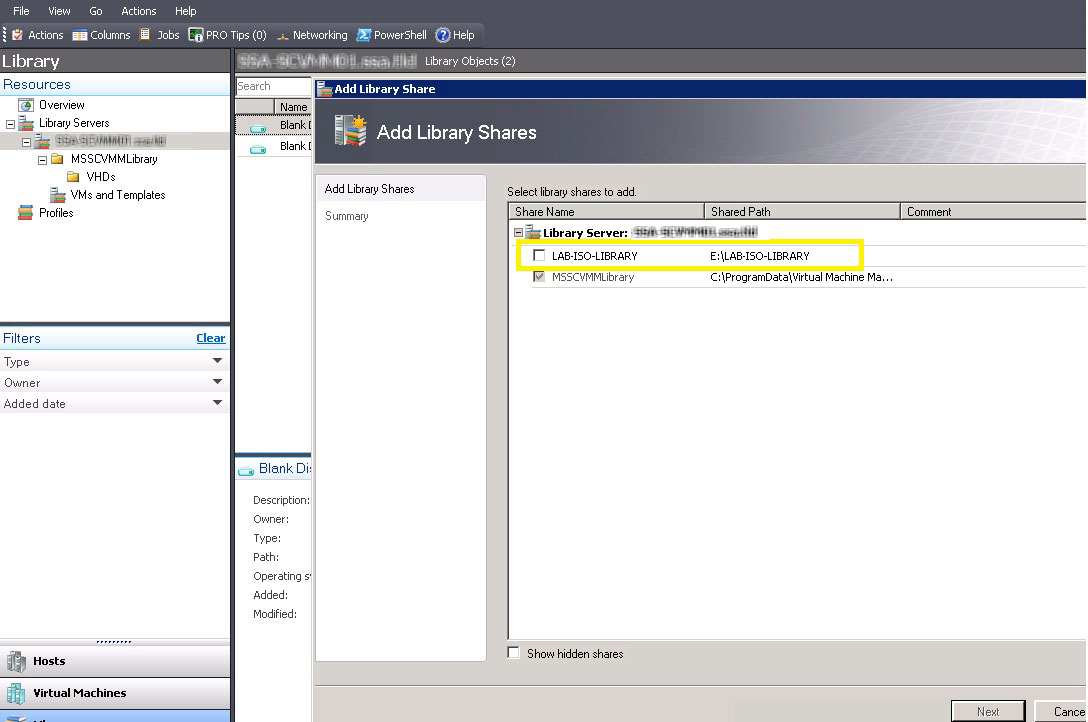 |
Figure 1. Creating a dedicated file share will allow SCVMM to place a library for virtual media files. (Click image to view larger version.) |
Once the new share is created, copy over CD-ROM .ISO files to the new library. You may need to induce a refresh of the contents by clicking the library settings button to turn off the refresh, and turn it back on. Once that is completed, the .ISO files are now visible in the library (see Fig. 2).
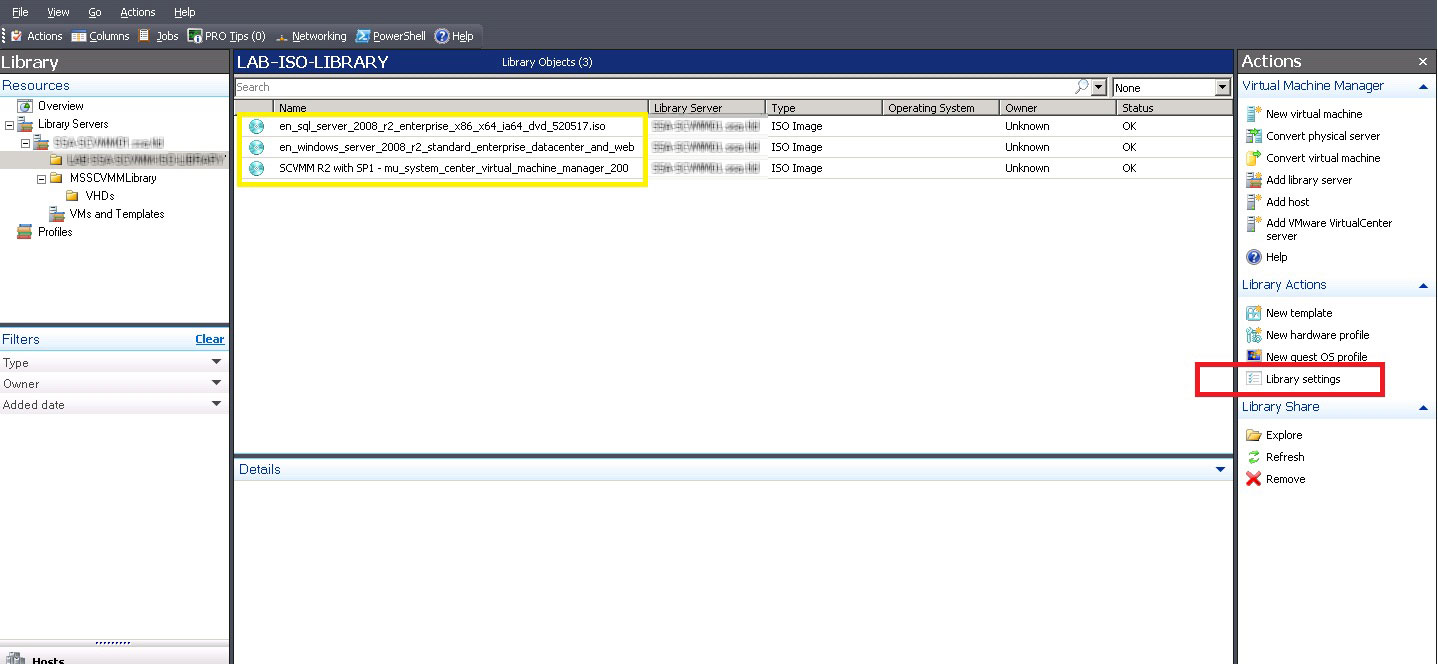 |
Figure 2. The virtual media files are now present in the library. (Click image to view larger version.) |
At this point, a new virtual machine can be created leveraging these virtual media files. They will access the CD-ROM .ISO files over the share that was created, and be installed directly on the Hyper-V host. Depending on the I/O patterns of CD-ROM .ISO files, it may be desirable to put these resources on a dedicated file server instead of on the SCVMM server. The options are effectively the same, except a library server is added with SCVMM to then add a designated share with the CD-ROM .ISO files.
What tricks have you employed in configuring library shares within SCVMM? Share your comments here.
Posted by Rick Vanover on 08/09/20117 comments
Since vSphere 5 has been announced, a number of new features and requirements of the product may require the typical vSphere administrator to revisit the design of the vSphere installation. New features are paving the way for even more efficient virtual environments. But the new licensing model has been discussed just as much if not more than the new features. The new pricing model accounts for the amount of RAM that is provisioned to powered-on virtual machines (vRAM). How we go about designing vSphere environments has changed with the new features and the new licensing paradigm. Here are some tactical tips to consider with the new features and vRAM implications:
More
Posted by Rick Vanover on 08/02/20112 comments
One of the best technologies for vSphere is the virtual machine migration technology, vMotion. vMotion received plenty of fanfare and has been a boon to virtualized environments for nearly five years. While this technology is rather refined, we can still encounter configuration issues when implementing it. Here are five vMotion configuration errors you'll want to avoid:
1. Lack of separation.
This is clearly the biggest issue with vMotion. vSphere can permit roles to be stacked on a network interface and spread across multiple IP addresses on a network. To ensure vMotion events bring the best performance, security and reduction of impact to other roles, implementing as much separation as possible will increase the quality of the vSphere environment. Keep in mind also that the vMotion event that transfers the memory of a virtual machine is sent unencrypted, so separation, at the least by VLAN, is a good idea. The best separation would be to have all vMotion traffic occurring on an isolated network on dedicated media that doesn't share physical connections with other vmkernel interfaces, management traffic or guest virtual machine networking.
2. Careless configuration that breaks requirements.
How many times have we tried to move a virtual machine with something silly getting in the way? Sloppy practices such as creating a VMDK on a local disk resource or mapping a CD-ROM device to a datasatore can prohibit the vMotion event. Further, extreme examples such as not zoning all datastores to all hosts or putting a single virtual machine's disk resources on a number of datastores that are not fully zoned across the cluster can cause migration issues. Take the time to make sure these issues are not going to cause migration issues, which, in most situations, can be addressed by a Storage vMotion task first.
3. DRS configured too aggressively.
Just because you can vMotion, doesn't mean that we need to do it -- so much. Pay attention to the cluster statistics and spot-check behavior of individual VMs that migrate a lot. If DRS is set too aggressively or one VM has behavior that may fool DRS, it may be worth a manual configuration value for the VM or make the cluster's configuration be less aggressive for DRS.
4. DRS not aggressive enough or set to manual.
The DRS setting can also be scaled back too conservatively in clusters that have a limited amount of resources, yet a dynamic workload that DRS can't do too much for. Further, if DRS is set to the automatic option but only the most conservative setting, the cluster's performance could be better if it was engaged a tad more. If DRS is set to manual, then vMotion events will not happen automatically as the cluster or individual VMs become busy.
5. Virtual machine configuration becomes obsolete.
It's always a good idea to keep the VM hardware version and VMware tools up to date. This can help vMotion as well as Storage vMotion events, as features are continually added to the platforms. Of course, the individual unit (the VM) needs to be able to support these new features, and the virtual hardware version and VMware Tools installation are critical to make this happen. If there are any VMs that are still at hardware version 4, take the time to get them updated to the current version (vSphere 4.1 is hardware version 7).
These tips will knock out the majority of issues, both with traditional vMotion and Storage vMotion tasks. While definitely not a catch-all list, thse issues outside of the host are usually tied to this list above.
What configuration mistakes get in the way of successful vMotion events in your vSphere environments? Share your comments here.
Posted by Rick Vanover on 06/28/20118 comments