The vSphere annotation field is one of the most versatile tools to put basic information for the virtual machine right where it is needed most. If you are like me, you may change your mind on one or more things in your environment from time to time.
Administrators can create annotations for the virtual machines, but need to be careful not to dilute the value of the annotation by creating too many values. Among the most critical attributes I like to see in the virtual machine summary is an indicator of its backup status, development or production status, or some business-specific information.
More
Posted by Rick Vanover on 11/16/20101 comments
I am not sure if I'm being increasingly brave here, but I'll say that I was inspired to weigh in with my comments on the contentious issue regarding the number of virtual machines per volume. It's good timing too. Recently, I just came across another great post by Scott Drummonds in his Pivot Point blog,
Storage Consolidation (or: How Many VMDKs Per Volume?)
More
Posted by Rick Vanover on 11/09/20102 comments
In my virtualization journey, I frequently find storage and memory as the most contended resources. This contention is usually based around memory growth by newer OSes and everyone wants more storage that performs faster. With
vSphere
, we now can assign eight virtual symmetric multiprocessors (vSMP) to a single virtual machine. This is available only for the Enterprise Plus offering (see
More
Posted by Rick Vanover on 11/04/20107 comments
When it comes to providing a virtualized platform for servers, we always need to consider the application. In my experience, I’ve been on each end of the spectrum in terms of designing the application and the impact it brings to the virtualized platform.
One of the options we’ve always had is to have an application that is designed with redundancy built-in. These are the best, as you can meet so many objectives without going through major circus acts on the infrastructure side. Key considerations such as scaling, disaster recovery, separating zones of failure and test environments can be built-in if the right questions are asked. This can usually come with the help of technologies such as load balancers, virtual IP addresses or DNS finesse.
More
Posted by Rick Vanover on 11/02/20101 comments
vSphere has many options for administrators to organize hosts, clusters, virtual machines and all of the supporting components of the virtualized infrastructure. I was talking with a friend about how it is always a good idea to review and reorganize the virtualized infrastructure (see
Virtualization Housekeeping 101
More
Posted by Rick Vanover on 10/28/20101 comments
Anyone who has tried to go down the VDI path for a small client virtualization installation and came to a hard stop will welcome any arrangement that makes it easy. VDI is a tough technology to reign in compared to the great success we've had in virtualizing servers. Many situations can bring a VDI effort to a stop, including a cost model that still puts physical PCs as the ROI winner.
At VMworld, one product that caught my eye is Kaviza's VDI-in-a-box. Simply put, Kaviza makes a broker that works pretty much anywhere to anywhere. The current offering includes support for XenServer and VMware hypervisors, with Hyper-V support coming. The endpoint can be anything from a PC client install (bring your own computer to work anyone?) to native RDP and Citrix HDX support for use on a number of thin-client devices such as Wyse and 10ZiG devices.
I noticed a few things from running the demo. For one thing, VDI-in-a-box can utilize direct attached storage. I've long thought that DAS has a use case in virtualization to some extent, as the cost savings can be so great that a shared storage infrastructure may not be required. Of course, many factors go into any decision; but DAS can be high-performance and eight drives or more can be on a local array.
The Kaviza solution utilizes a virtual appliance on each hypervisor to broker the connections to a wide array of supported endpoints (see Fig. 1).
 |
|
Figure 1. Kaviza's VDI-in-a-box builds on commodity components (in green) and provides the broker as a virtual appliance and uses a supported protocol to bring a VDI session to a number of devices. (Click image to view larger version.) |
The best part of the Kaviza solution is that it can run under $500. This includes the server, hypervisor, Kaviza ($125 per concurrent user) and Microsoft costs. This cost does not include the device if a non-PC is used; on the high-end the street price would be $425 per client with Kaviza's online ROI guide.
Does a sub-$500 VDI solution not offered by VMware, Citrix or Microsoft appeal to you? Share your comments here.
Posted by Rick Vanover on 10/26/20102 comments
When vSphere was first released, the new features and their alignment to existing investments created lots of confusion. Customers that have an active Support and Subscription (SnS) agreement were entitled to a certain level of vSphere features. There were no direct mappings to the Enterprise Plus level of vSphere that did not involve the promotional pricing to upgrade all processors to Enterprise Plus, however.
At the time, the Enterprise level of vSphere licensing was slated to be available for sale for a limited time. To this day, Enterprise is still available for sale. For anyone considering between the two versions, I will definitely nudge you towards Enterprise Plus. Here are a few reasons why:
- vSMP support: Enterprise currently limits a virtual machine to 4 vCPU, effectively still functioning at the same level as ESXi 3.x. vSphere is capable of 8 vSMP to a single virtual machine, but it isn't licensed to that level unless Enterprise Plus is utilized.
- Cores per processor: Enterprise limits this to six cores per socket. While the current mainstream processors are available with six cores and will easily fit most installations, consider the future and any licensing that will be reapplied to new servers.
- Distributed switch functionality: This is somewhat forward-looking, but if at any point vCloud Director would be a consideration in the future; this is made much easier with the heavy networking investment.
- Host profiles: This vSphere feature allows customized host configurations for almost any manageable value to be applied centrally to vCenter after a host ESXi system is installed.
The full breakdown of Standard, Advanced, Enterprise and Enterprise Plus licensing levels is here.
The other side of the coin is, if all of these levels bring too much cost into the picture and the features are not required, VMware has made a serious leap forward with the revised Essentials Plus offering. Basically, small and remote sites that need a virtualized infrastructure will see it as a winning solution; but not all of the features of the big datacenters. Check out the Essentials Plus offering here.
Enterprise Plus may not be needed for all installations, but if the decision rests between Enterprise and Enterprise Plus; it should be pretty clear which way to go.
Have you made the case to stay on Enterprise? If so, share your comments here.
Posted by Rick Vanover on 10/21/20105 comments
During VMworld in San Francisco, an important update crept out for the VMware
vCenter Converter Standalone
edition. It was great news for me, as I had started to wonder if the product was going the way of a deprecated product. The virtual machine conversion mechanism is still an important part of the arsenal for today's virtualization administrator. I frequently use it for additional physical-to-virtual conversions, specialized virtual-to-virtual operations such as a data center migration and to shrink existing virtual machines.
More
Posted by Rick Vanover on 10/19/20105 comments
One of the things I love about virtualization is that the virtualization community aspect is so well defined. I particularly enjoy also that the VMworld events are a manifestation of the community, and that was repeated this week in Copenhagen for the VMworld Europe show. In years past, VMworld Europe has been at a polar opposite on the calendar from the VMworld event in the U.S.; which finished up in early September in San Francisco.
By having the events so close together, VMware and the partners can control timing of news as well as releases. It is an incredible feat to pull off an event the size of VMworld, much less having to repeat the ordeal a mere six weeks later in Europe. By having the same message, announcements, labs and other components that make up VMworld; there is an incredible logistic efficiency obtained.
After VMworld in San Francisco, I had a discussion about the logistics of one, two or even three events recently on the Virtumania podcast. A suggestion was raised to have more events, and I quickly chirped in saying that it is way too much work to put on an additional event of this level. This leads to my biggest complaint about VMworld, the fact that the US events are always in the Western part of the country. There are plenty of destinations in the central part of the US, but the most compelling reason is for the attendees. Given that there is not a VMworld for the Asia/Pacific region, a VMworld event needs to be accessible for those attendees. The Western cities of San Francisco, Las Vegas, Los Angeles and others do that nicely.
For my own VMworld attendance strategy, next year I am going to try to attend both events. This will allow me to fully take in everything that you miss between the two events. Believe me, there is plenty to take in. If you are borderline on attending VMworld and have never done so before, I recommend you do it. There is something for everyone at the event, and as a blogger I find this as an important way to meet up with other bloggers, tech companies and the readers.
Until next year, the craze that is VMworld will get quiet. As for the whole cloud thing, well, we'll work on that.
Posted by Rick Vanover on 10/14/20102 comments
What's great about virtualization is the fact that we can change just about anything we want with minimal impact to production workloads. It's partly due to functionality from hypervisors and management software, but the human factor plays a big part. Here is a quick housecleaning checklist to review through a vSphere environment (and applies to versions of vSphere and VI3), to catch the small things that may have accumulated over the years:
Datastore contents: How many times have you put a powered-off virtual machine in a special folder, on a special datastore or held onto just a .VMDK in case you ever needed it? There are a number of crafty ways to find these, including using a product like the VKernel Optimization Pack to find unused virtual machines. Also keep your eyes open for the “Non-VI workload” error message from last week's blog post.
Reformat VMFS: I know there is no hard reason to upgrade, but it is annoying to see a smattering of volumes that are created as storage is added and ESXi (or ESX) versions are incremented. Evacuating each volume with Storage vMotion and reformatting will bring every volume up to VMFS 3.46 (assuming version vSphere 4.1 is in use). This would also be a good time to reformat each volume at the 8 MB page size, as there is no real compelling reason to be on 4, 2 or 1 MB sizes.
Check for antiquated DRS configuration items: Rules that are not needed any more, resource reservations that were a temporary fix, or limits that may not need to be in place can put extra strain on the DRS algorithm.
Reconfigure drive arrays: If you have been wishing to reformat a drive array at a different RAID level (such as RAID 6 instead of RAID 5), the previous datastore step may create a good time to correct this.
Reconcile all virtual machines with lifecycle and approval: We've never stood up a test virtual machine as an experiment, have we? Make sure all experimental machines are removed or that they still need to exist.
Permission and role reconciliation: Check that the current roles, active administrators, permissions and group setup are as expected.
Template and .ISO file cleanup: Do we really still need all of the Windows 2000 and XP virtual machine templates? Chances are at least one template can be removed.
Update templates: For Windows updates, VMware Tools, virtual machine version, etc.; these configuration elements can quickly get obsolete.
Change root password: Probably a good idea if you've had staff turnover at some point.
Do you have any additional housekeeping items? Share your periodic tasks here.
Posted by Rick Vanover on 10/12/20105 comments
One of the pillars of virtualization is the ability to abstract servers from hardware to provide additional availability. Of course, infrastructure demands continue to increase and we seek to deliver high availability or even fault tolerance beyond the basic virtual machine. A number of solutions are available for virtual workloads.
The fault-tolerant space has three mainstream players: the VMware Fault Tolerance virtual machine feature with vSphere, Neverfail (which has an OEM relationship for VMware's vCenter Server Heartbeat feature) and Marathon Technologies. Neverfail aligns with VMware, and Marathon aligns with Citrix.
Since the middle of the last decade, Marathon Technologies has offered solutions from HA to FT for Windows workloads before virtualized servers were mainstream in the datacenter. Back when I worked in the supply chain software industry, I used the everRun HA solution to replace fault-tolerant hardware solutions such as the NEC Express5800/ft or Stratus ftServer. Even back then, Marathon allowed customers to utilize commodity hardware for these HA and FT solutions.
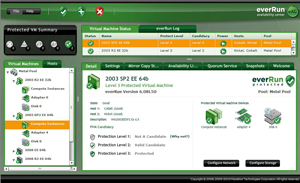
Marathon recently released everRun MX, which provides a flexible offering to deliver FT workloads on commodity hardware. everRun MX can work for those who want to deploy a robust solution for a few workloads without a huge investment. everRun MX can use direct-attached storage or shared storage, making it price competitive if a traditional SAN is not involved. I've always thought it is very tough to provide a robust, highly available virtualized environment from small footprints such as a remote office.
With everRun MX, a base configuration starts at $10,000 and allows administrators to run a pair of servers of any configuration (core/sockets/memory) and includes one year of support and maintenance. The servers must have Intel processors. You can run everRun MX on dissimilar hardware, but they should be comparable. everRun MX uses the term Metal Pool, which would loosely equate to a cluster of virtual machines running with FT capabilities.
 |
|
Figure 1. everRun MX allows a collection of virtual machines to function in a fault tolerant mode on commodity hardware. (Click image to view larger version.) |
You might be asking: How well would this type of configuration be received within the greater software landscape? As virtualization customers, we go through this battle with new software titles to see if the software vendor supports their product being run on a virtual machine. For an architecture like this, it's not as widely embraced as is a VMware virtual machine as a supported platform. But Marathon does offer 24x7 worldwide support in addition to an extensive partner ecosystem. I haven't used Marathon products in a while, but everRun MX seems to bring more to the table for the customer seeking value and features.
Let me know if you want to see more of everRun MX and I'll follow up with an evaluation!
Posted by Rick Vanover on 10/07/20107 comments
In VMware Infrastructure 3, the one area that the vCenter Server needed to do a better job was its built-in alarms and alerting. So, one vSphere 4 objective was to increase the breadth of built-in alarms. This saves administrators time with PowerShell, as the only way to achieve full safety is to script alerts and send e-mails.
The good side is that you can put in a lot of handling and specific criteria for the thresholds -- well, at least as good as you can script them. The bad side is that the vCenter Server database doesn't track these events to the affected object (datastore, host, VM, etc.).
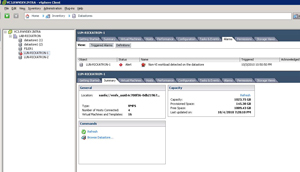
vSphere 4 has a new alert, "Non-VI workload detected on the datastore" that is somewhat misleading. This message shows up on an otherwise healthy datastore (see Fig. 1).
The basic premise for this alert on the datastore is to avoid a virtual machine that is removed from inventory consuming too much space on the datastore. This is somewhat of a misnomer, as many administrators put non-workload data on datastores. This data can include CD-ROM .ISO files as well as a special backup of a system before it is deleted.
Further, the VMFS file system has built-in functionality to allow multiple ESXi hosts connect. This means that you can have a number of ESXi hosts that may be licensed with vCenter connect to a datastore, and that same datastore is zoned on the storage system to another ESXi system, such as the free edition without vCenter (I cover this in my "Forward Motion" post from last year).
The new alert is also somewhat useless as it doesn't tell you what the offending workload is on the datastore. Administrators are left to use the Storage View functionality and maps to determine what files or virtual machines are the culprits. I'm all for saving datastore space, but I don't like that this defaults to an "Alert" level and issues a red indicator. This can be changed to a "Warning" level and issue a yellow indicator in the definition of the alarm (see Fig. 2).
 |
|
Figure 1. While the datastore has ample space and adequate connectivity, an alarm is generated by the presence of foreign content. (Click image to view larger version.) |
 |
|
Figure 2. You can make this condition issue a warning instead of an alert in the definition of the alarm. (Click image to view larger version.) |
Do you find this alert a little confusing or over-cautious? Share your comments here.
Posted by Rick Vanover on 10/05/20101 comments