In-Depth
Running AI Natively on Windows 11 Using an eGPU
In this series of
articles, I am investigating how to, and how well, AI Large
Language Models (LLMs) work on relatively low-powered devices,
including a Raspberry Pi and on a Linux virtual machine (VM) using
VMware Workstation. I used the LLM in a VM because I wanted a sandbox
environment to test it and the ability to upload the VM to vSphere
for production. The VM ran the LLM far better than on the Pi. To
simplify things, I ran the LLMs using Ollama.
Ollama can run
natively on Windows, Linux, and macOS, and I thought it would be
interesting to see how well it performs on Windows compared to in a
VM. This is far from being an apples-to-apples comparison, as
I was able to dedicate only three of the CPU's four cores and 12GB of
RAM to the virtual machine. Running it natively on Windows, I needed
to dedicate all CPU cores and memory to the test.
Installing Ollama on Windows
I am impressed with Ollama; installing it on Linux was dead simple. However, I was a bit cautious about installing it on Windows, but after reviewing its documentation, it seemed straightforward.
From a usability standpoint, Ollama appears to support both CPU-only systems and GPU-equipped systems, provided that the required NVIDIA drivers and CUDA are installed. On systems with GPUs, Ollama automatically leverages hardware acceleration without requiring additional configuration.
One of the cool things about Ollama is that LLMs are automatically downloaded and stored locally, and updates are handled transparently. Its command-line interface should work well with the scripts that I had previously written.
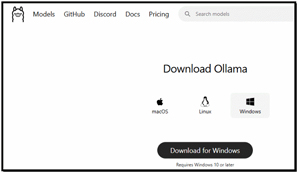
I started the installation process by downloading the Windows installer from Ollama's official site and installing it as I would any MSI package.
 [Click on image for larger view.]
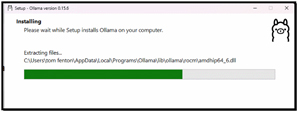
During installation, Ollama sets up a background service that manages models and inference.
 [Click on image for larger view.]
Once the
installer finished, I didn't need to manually configure Python
environments, CUDA paths, or separate dependencies, and was presented
with the Ollama GUI.
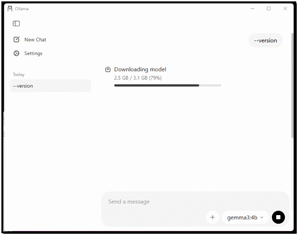
For my first test, I used the GUI to download the gemma3:4b LLM.
 [Click on image for larger view.]
It took a few minutes for the LLM to download, but after it finished, I asked it, "What is the capital of Oregon in the US?" and it returned the correct answer in a couple of seconds. I then asked it, "Create the HTML code to display 'Hello World' in blue." Again, in short order, the correct answer came back. As a final test, I asked it to "Create a table showing the population of the western United States in each decade for the past century." It took a bit longer to create the table, but still, it was quick. These are the same questions I asked of the LLM during my testing of LLMs running on the Pi and VM.
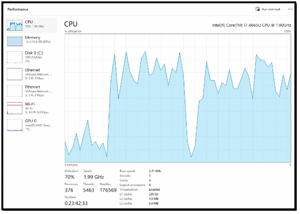
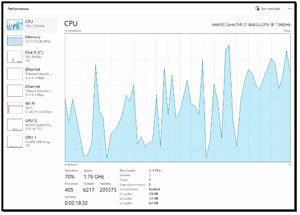
I noticed that, while running the various tests, the CPU was heavily utilized.
 [Click on image for larger view.]
After seeing how responsive it was natively on my CPU-based Windows laptop, I wondered whether it would be faster on a GPU-equipped system.
Running Ollama on Windows 11 with an eGPU
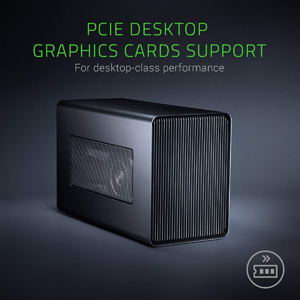
To test this, I used my Razer Core X GPU Enclosure (eGPU) that has NVIDIA/AMD PCIe Support. It is an older unit that has since been discontinued, but I was hoping that it would still work.
 [Click on image for larger view.]
The Core X eGPU connects to my laptop via Thunderbolt and turns it into a GPU-enabled system by housing a full-size desktop GPU. It sits under my desk, and its sturdy aluminum body doubles as a footrest.
The Core X hardware is quite impressive, as it can support a triple-slot PCIe graphics card and features a 650 Watt internal power supply that powers the GPU while also delivering 100 W back to my laptop via its USB-C/Thunderbolt connection. It claims to be plug-and-play compatible with Windows and macOS systems that support Thunderbolt graphics. It is an interesting way to boost graphics performance on laptops or small-form-factor PCs. It was designed for gaming and content creation, but I hope it will also work for GPU-accelerated AI workloads.
NVIDIA Quadro P2200 GPU
In the eGPU, I
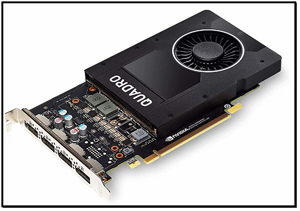
have an NVIDIA Quadro P2200 GPU.
 [Click on image for larger view.]
This is an older, low-end GPU. It is built on NVIDIA's Pascal architecture and is primarily targeted at workstation users, such as engineers, designers, and content creators, who need reliable performance for visualization and CAD applications. It is moderately powerful, featuring 1,280 CUDA cores, 5 GB of high-speed GDDR5X memory, and a 160-bit interface. It delivers up to 3.8 TFLOPs of single-precision compute power and up to 200 GB/s of memory bandwidth.
Physically, it is a compact, low-profile card and has four DisplayPort 1.4 outputs and can drive multiple high-resolution displays natively. It is mainly used for 3D modeling, technical visualization, and multi-monitor workflows. It was designed for stability and certified driver support across a range of professional software rather than raw gaming performance.
Although it was designed for CAD, gaming, and content creation, my research showed that, for AI and large language model (LLM) workloads, the Quadro P2200 should be able to perform inference or small-scale model experimentation, largely because it supports CUDA for general-purpose parallel computing, which modern AI frameworks rely on.
However, it lacks the newer Tensor Cores found in NVIDIA's RTX and data-center-class GPUs, which dramatically accelerate matrix-intensive operations central to deep learning training and large LLM inference. For practical LLM work, particularly with larger models or more complex training/inference pipelines, GPUs with larger VRAM and dedicated AI acceleration (e.g., Tensor Core-equipped architecture) would be far more effective.
With only 5 GB of memory, the P2200 will limit the size of models I can run locally and will be comparatively slow on AI workloads that require heavy linear algebra. Still, I hope that it will speed up my AI tests. The eGPU connects to my laptop via a Thunderbolt 3 (USB-C) port, which is rated at up to 40 Gbps, which might slow things down a bit, but I don't think that speed will be much of a hindrance.
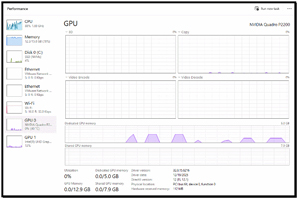
While the tests were running, I monitored the laptop and GPU using Task Manager.
Task Manager showed CPU usage was spiky during the tests.
 [Click on image for larger view.]
Task Manager showed bounces in the dedicated GPU memory while the tests were running.
 [Click on image for larger view.]
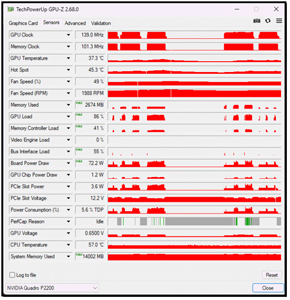
I determined that Task Manager was not the best tool to monitor the GPU, so I downloaded and installed GPU-Z. It provided a more in-depth look at the GPU, showing its memory usage during the test.
Memory Used (2674), Memory Controller load (41%), and GPU load (86%) more clearly showed the high levels of activity during the tests.
 [Click on image for larger view.]
Testing LLMs on Windows
To quantify how well the LLMs ran on the Windows machine, I converted my Bash testing script to PowerShell and ran it on my laptop with and without the GPU.
Test Results
To better understand the performance of LLMs with and without the GPU, and how they ran in a VMware Workstation virtual machine, I created a results table. Below is a snippet of the table.
System
|
Model
|
Prompt
|
Total
Duration (s)
|
Generation
Rate (tok/s)
|
Win
+ eGPU
|
gemma2:2b
|
Oregon
Capital
|
0.37s
|
41.23
|
Win
+ eGPU
|
tinyllama
|
Oregon
Capital
|
0.27s
|
92.68
|
Win
+ eGPU
|
deepseek-r1:1.5b
|
Oregon
Capital
|
8.10s
|
51.05
|
Win
(CPU-only)
|
gemma2:2b
|
Oregon
Capital
|
2.13s
|
11.87
|
Win
(CPU-only)
|
tinyllama
|
Oregon
Capital
|
4.13s
|
30.77
|
Win
(CPU-only)
|
deepseek-r1:1.5b
|
Oregon
Capital
|
1.23s
|
21.50
|
Ubuntu
VM
|
gemma2:2b
|
Oregon
Capital
|
31.13s
|
4.81
|
Ubuntu
VM
|
tinyllama
|
Oregon
Capital
|
4.28s
|
8.39
|
Ubuntu
VM
|
deepseek-r1:1.5b
|
Oregon
Capital
|
8.97s
|
10.81
|
Looking at the results, I could see that the LLMs using the eGPU system consistently outperformed those without it, achieving the highest generation rates. The TinyLlama LLM reached speeds exceeding 100 tokens/second when using the eGPU, compared to only ~8-11 tokens/second in the virtual machine environment.
The virtual machine (Ubuntu VM) showed the highest total durations. For example, the first prompt for gemma2:2b took 31.1 seconds on the VM compared to only 0.37 seconds on the eGPU system.
I could also see that TinyLlama was the fastest model across all platforms, maintaining high throughput even on CPU-only systems. DeepSeek-R1 (1.5b) produced the longest responses with 2,450 tokens for the population prompt.
Analysis AI on Workstation, Windows CPU, and GPU
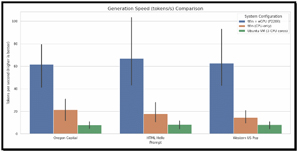
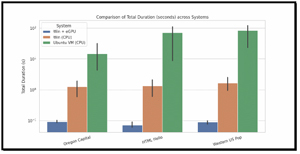
To visualize the results, I created graphs of my test results. This really highlights the differences.
 [Click on image for larger view.]
 [Click on image for larger view.]
The results show that hardware configuration had the greatest impact on local LLM performance. Across all tested models and prompts, the HP Firefly equipped with the NVIDIA P2200 eGPU consistently delivered the lowest total runtimes and the highest evaluation rates (tokens per second). Even with a relatively modest workstation-class GPU, hardware acceleration dramatically reduced end-to-end inference time and increased throughput, particularly for longer responses and more complex prompts. In contrast, the CPU-only Windows configuration showed noticeably longer runtimes and lower token-generation rates, confirming that modern LLM inference remains heavily compute-bound and benefits significantly from parallel execution and GPU-friendly matrix operations.
Running the same workloads inside an Ubuntu virtual machine constrained to three vCPUs and 12 GB of RAM resulted in the slowest performance across all scenarios. Both total duration and eval rate metrics indicate that virtualization overhead, reduced core availability, and less efficient CPU scheduling impose a substantial penalty on LLM inference. While the VM configuration remained functional for testing and experimentation, its reduced throughput makes it poorly suited for interactive or production-style workloads. These results highlight that limiting CPU resources has a compounding effect when paired with workloads that already stress memory bandwidth, cache locality, and vector execution units.
These findings reinforce a clear hierarchy for local LLM deployments. GPU-accelerated systems provide the best overall experience and are strongly recommended for sustained use, complex prompts, and reasoning-heavy models. Native CPU-only systems can be viable for lighter workloads and smaller models, but scale poorly as output length and reasoning depth increase. Constrained virtual machines, while convenient, introduce enough overhead to degrade usability significantly. For practitioners evaluating local LLM deployments, these results underscore the importance of aligning hardware capabilities with intended workloads and suggest that even entry-level GPU acceleration can deliver outsized gains in performance and responsiveness.
Ollama App with GPU
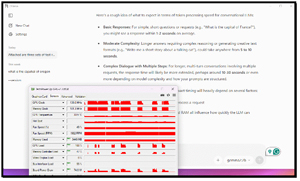
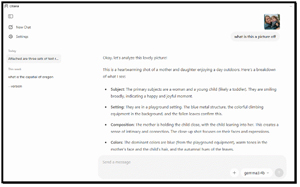
As a final test, I was interested in how responsive the Ollama app would be with a GPU, so I brought it up and started asking it questions; the response was remarkably good.
 [Click on image for larger view.]
I was even able to use the gemma3:4b model to describe the contents of a picture I uploaded.
 [Click on image for larger view.]
Final Thoughts
I found, unsurprisingly, that hardware played the most significant role in performance. Even an older, modest GPU, like the P2200, delivered substantial improvements in my LLM tests. The combination of virtualization overhead and CPU limitations significantly extended the runtimes in some cases, doubling or tripling them.
Overall, I found that only the GPU-accelerated system would be usable in production environments and for moderate workloads. The Native CPU system might be suitable for very light usage. The VMware Workstation virtual machines were primarily intended for testing and experimental purposes and did not support GPU pass-through.
I do need to note that my CPU testing was done using an older laptop without a supported GPU, and I am interested to see how well a modern laptop would perform.
About the Author
Tom Fenton has a wealth of hands-on IT experience gained over the past 30 years in a variety of technologies, with the past 20 years focusing on virtualization and storage. He previously worked as a Technical Marketing Manager for ControlUp. He also previously worked at VMware in Staff and Senior level positions. He has also worked as a Senior Validation Engineer with The Taneja Group, where he headed the Validation Service Lab and was instrumental in starting up its vSphere Virtual Volumes practice. He's on X @vDoppler.